
Make sure your CSV file uses comma separators and UTF-8 encoding. If you are using a platform other than Squarespace, Shopify, or Eventbrite, download the Eventually template or use an Eventually export and map your columns to match.
Import events from a CSV file
Import events into Eventually from a CSV file, or export your current events, edit them in a spreadsheet, and re-import the file to update those events in place. The import tool accepts CSV exports from Squarespace, Shopify, and Eventbrite, or the Eventually template for custom data and bulk edits.
You can also import informational, calendar-only events that do not require registration by setting the disable_registration column to a truthy value.
Export events for bulk editing
On the Events page, use Export CSV to download events in the same current Eventually CSV format as the Eventually import template. Every exported row includes the event id, so re-importing the file updates those events instead of creating duplicates.
Open Events in the left sidebar.
Optional: switch the list tab, search, category filter, or open a series so the list shows only the events you want to edit.
Click Export CSV in the Events toolbar, to the left of Import Events and New event.
Choose the current-scope option or All events.
Edit the downloaded spreadsheet, then re-import it with Import Events.
On a phone, Export CSV and Import Events are not separate buttons on the Events page. Open the More menu, labelled More event actions, to use either one: the menu offers the same current-scope and All events export options and opens the same import flow. On larger screens, the toolbar buttons described in the steps above appear as usual.
The current-scope menu label matches the list you are viewing:
Upcoming only
Drafts only
Completed only
Series only on the series tab
These occurrences (or These events) when you are inside a series
Current-scope exports keep the active list filter, search, category, and series scope. All events ignores those list scopes and exports every non-discarded event for the site, including drafts, completed events, past events, and series occurrences. Discarded events are not included.
Keep the id value when you are editing existing events. Leave id blank only for rows that should create new events. An untouched export can be re-imported without duplicating events.
Access the import tool
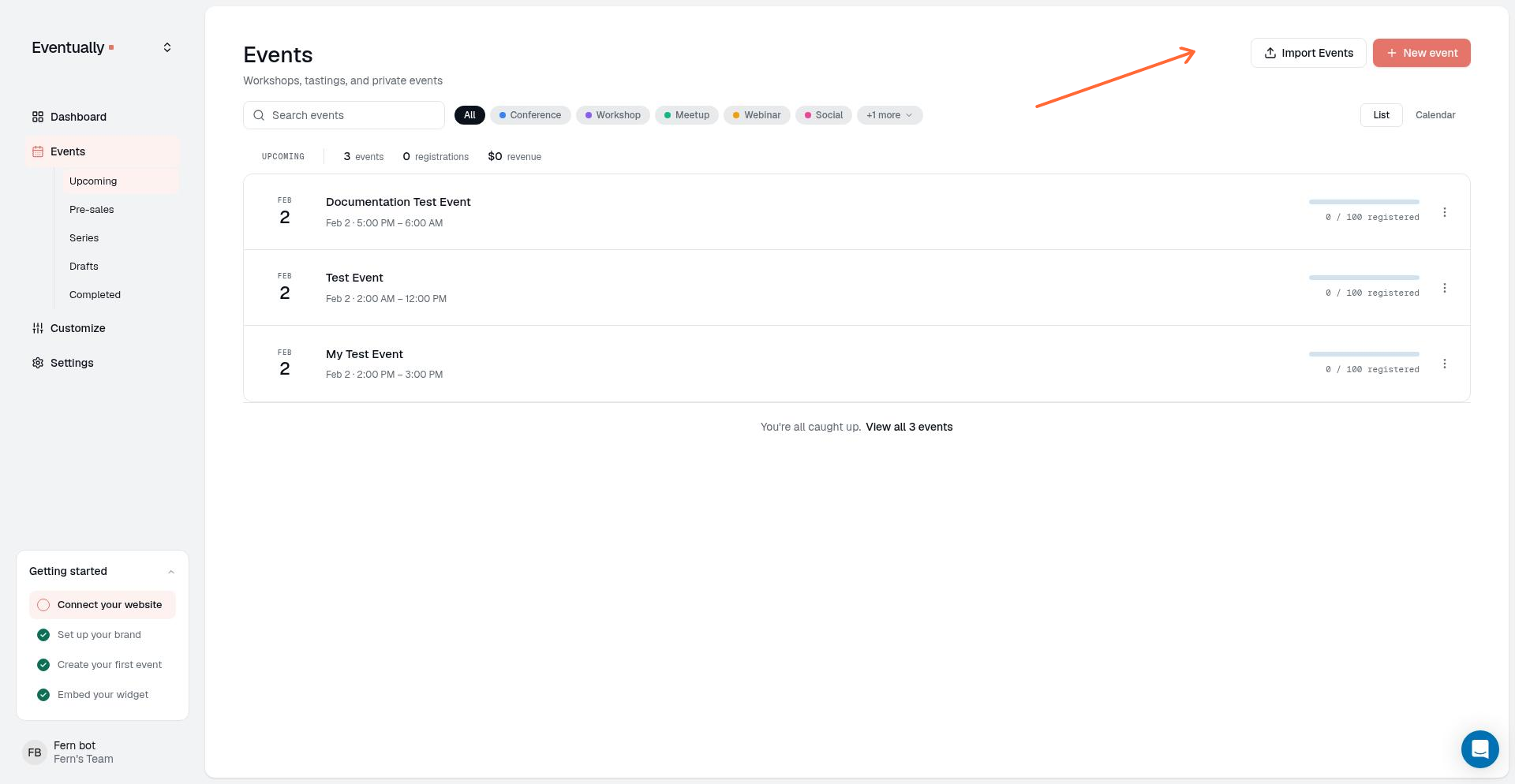
From your dashboard, open Events in the left sidebar, then click Import Events next to New event.
Prepare your CSV file
In the import modal, download the Eventually CSV template, upload a file you exported with Export CSV, or upload a CSV export from Squarespace, Shopify, or Eventbrite.
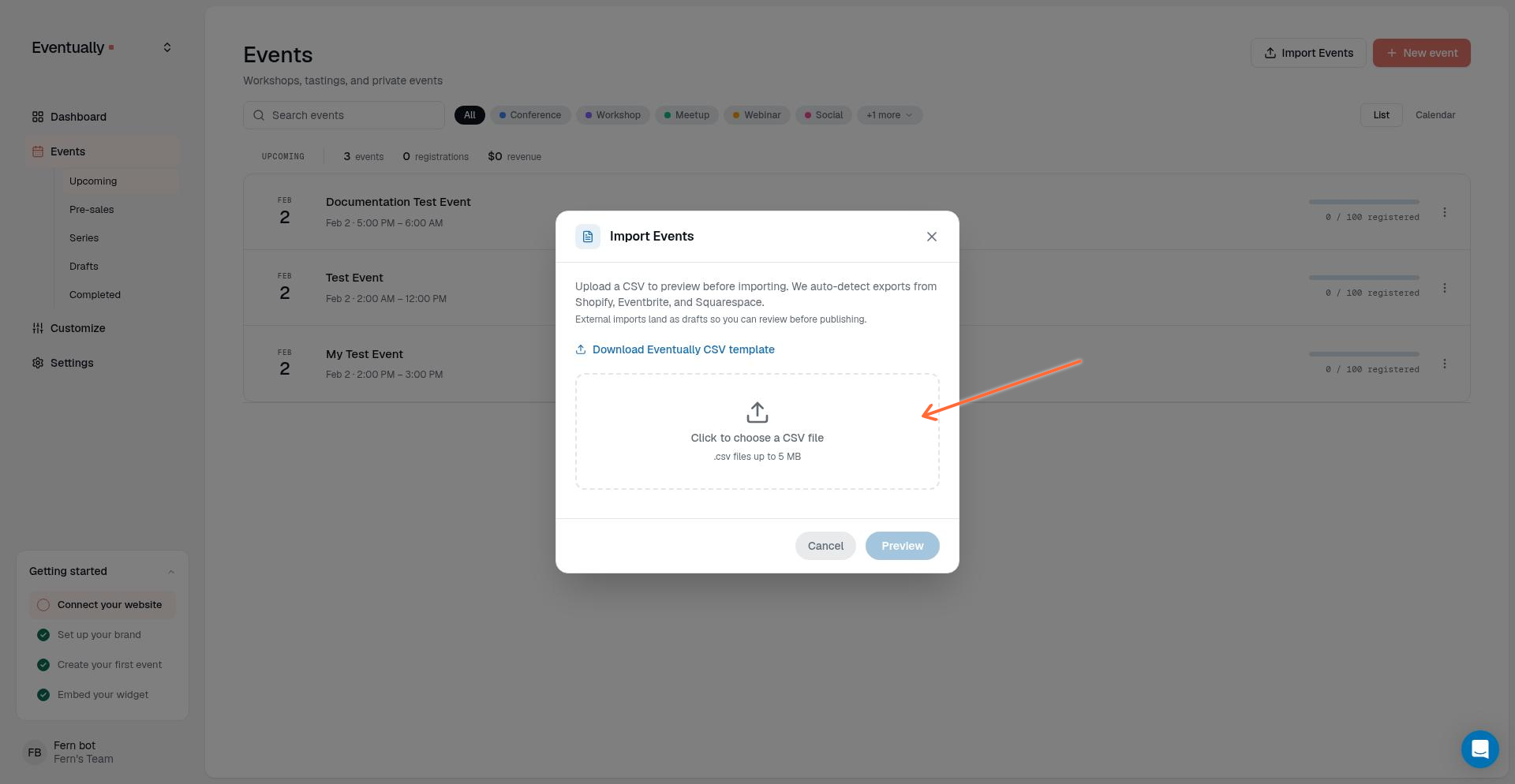
If you are exporting from Squarespace, Shopify, or Eventbrite, you do not need to reformat your CSV. Upload it as-is and we recognize the format.
Click Download Eventually CSV template to get the template with these columns:
Column | Sample value |
|---|---|
| |
| Sample Workshop |
| Learn the basics in a hands-on session. |
| 2026-04-01 10:00:00 |
| 2026-04-01 12:00:00 |
| in_person |
| The Studio |
| 123 Main St |
| |
| America/Chicago |
| draft |
| |
| Early Bird:45:10|General:65:20|VIP:95:5 |
| |
| Skill level?:dropdown:Beginner,Intermediate,Advanced:true|Any allergies?:text::false |
| true |
| false |
| engaged |
| Workshop, Social |
| Beginner Friendly, Indoors |
| |
| |
| |
| |
| |
| false |
| false |
The more_info_url and more_info_button_text values are copied to recurring event instances and preserved during import without changing the registration type.
Calendar-only events. Set disable_registration to true to import an event with registration turned off. The event can be published without ticket types. A blank cell leaves the existing registration setting unchanged when re-importing, while an explicit false enables registration on update and can change the existing setting.
Create or update with the id column
Eventually-format rows use the id column to decide whether to create or update:
Blank
id: create a new event.Matching
idfor an event on the site: update that event in place.Unknown
id: the row fails with anEvent ID … not founderror and does not create a new event.
Exported rows always include id. Keep those values when bulk-editing existing events. Start from the template, or clear id, only when you intend to create new events.
When you re-import an Eventually CSV for an existing event, ticket tiers are matched by name and updated in place instead of being deleted and recreated. Exact tier names are matched first; a name that differs only in casing or spacing can still update the matching tier. A matched tier keeps its tier-specific settings, such as access codes, sale windows, per-order limits, default status, position, and whether the tier is an add-on, while CSV-controlled values like name, price, and capacity are updated. New tiers in the file are created. The ticket tier format Name:price:capacity accepts an optional fourth segment, Name:price:capacity:addon, that creates the tier as an add-on. Exports write this segment for add-on tiers, such as Tee-shirt:15:0:addon, so exporting and re-importing an event preserves its add-on tiers. Tiers omitted from the file are removed unless they have registrations. Because matching is name-based, changing a tier's name can leave the old tier unmatched and create a new one. If a tier cannot be applied (for example a duplicate or ambiguous name, a rejected value, or a tier that could not be removed), the Import Complete view lists a tier-level message for it, showing up to the first 50 messages.
Categories, tags, cost, and time zones
These columns have specific create and update rules during Eventually-format import.
Categories on update: A non-blank
categoriescell replaces the event’s categories. Categories listed in the cell are kept or added; categories omitted from the cell are removed. A blankcategoriescell leaves existing categories unchanged.Categories on create: A blank
categoriescell creates the event with no categories.Tags: The
tagscolumn works on create and update. Non-blank values assign those tag names. A blanktagscell leaves existing tags unchanged and does not clear them.Cost: Exports leave
costblank whenticket_typesis present. On create, the importer readscostonly whenticket_typesis blank, so leavecostempty if the row already defines ticket types.Time zones: Imports accept timezone names and near-miss spellings with spaces, such as
America/Los Angeles, and normalize them so buyer-facing event times use the event timezone instead of the viewer’s clock. Exportedstart_atandend_atvalues use the event’s own timezone wall-clock time, not UTC. For how event times display after import, see Date, time, timezone, and location autocomplete.Delimited values: Exported
categories,tags,ticket_types, andregistration_questionsvalues that contain commas or other sub-delimiters are escaped so a round trip does not split them incorrectly. Prefer editing an export when those fields contain special characters.
Registration question ticket-type scope
The registration_questions column supports an optional fifth segment that scopes a question to specific ticket types. The full format is Label:field_type:options:required:scope, where scope is a comma-separated list of ticket-type names. A question with no fifth segment, or an empty one, is asked on all tickets, so files created before this feature import exactly as before.
Exports write ticket-type names, not IDs, so a file can round-trip across sites where ticket-type IDs differ. For example, a question scoped to the Early Bird ticket exports as Team Name:text::true:Early Bird.
On import, each name in the scope is matched exactly against the event's current ticket types. If none of the names match, the question is skipped and reported as Question 'Label' skipped — none of its ticket types exist on this event. If only some names match, the question is kept on the matching types and the unmatched names are reported as Question 'Label': ticket type 'Name' not found — kept on its remaining types. Renaming a ticket type between export and import breaks the name match, so the question is reported rather than silently widened to all tickets.
The field_type segment accepts the ten registration question types: text, long_text, email, phone, number, date, dropdown, multi_select, yes_no, and checkbox. List types (dropdown for Single select, and multi_select) read their choices from the options segment, so imported date, email, phone, number, and multi-select questions keep their type instead of being converted to text.
Status, location type, and guest experience tier
These Eventually-format columns only apply a value when the cell matches an accepted option. Blank cells stay quiet and do not change an existing event.
Status accepted values:
draft,published,cancelled,completed.Location type accepted values:
in_person,virtual,hybrid.Guest experience tier accepted values:
simple,engaged,high_touch.
On create, an unrecognized or blank status creates the event as draft; an unrecognized or blank location_type uses in_person; an unrecognized or blank guest_experience_tier uses engaged.
On update, an unrecognized or blank value in any of these columns leaves the event’s current setting unchanged. An invalid status does not move a published event to draft or take it off sale. Keep the exported status when bulk-editing live events, and use a recognized value only when you intend to change it.
Unrecognized values and advisories
For Eventually-format CSV files, the preview can show a blue advisory when a non-blank timezone, status, location_type, or guest_experience_tier value is not recognized. Advisory rows still import; they are not the same as skipped-row warnings.
Skipped rows: The preview lists rows that will not import, with a count such as “N rows will be skipped.”
Advisory rows: The preview lists rows that will import with an unrecognized value, with a count such as “N rows will import with a value we didn’t recognize.”
Blank cells: Empty cells in those columns do not produce an advisory.
Repaired time zones: Near-miss timezone spellings the importer can normalize, such as
America/Los Angeles, do not produce an advisory.
When a timezone is unrecognized:
New events fall back to a timezone detected from the address when possible, otherwise your team default. That fallback can shift start times.
Updates to existing events keep the event’s saved timezone, so a timezone change you meant to make does not apply until the CSV value is fixed.
After import, the completion summary reports how many rows imported with an unrecognized value, lists affected rows, and notes the fallback timezone used for new events. Failed rows remain a separate list from advisories. Fix the source CSV when an advisory appears rather than assuming the typed value was applied.
CSV exports from Squarespace, Shopify, and Eventbrite do not include these Eventually-format advisory checks for timezone, status, location type, or guest experience tier.
Upload and import
In the import modal, click Click to choose a CSV file or drag and drop your CSV file.
The file size limit is 5 MB for CSV uploads.
Click Preview to review how your rows will be imported.
Review the preview. Check skipped-row warnings, blue advisories for unrecognized values that still import, and the interpreted start times shown for each row.
Confirm the import to create new events and apply updates.
Preview dates and times use the same interpretation the import will write, including your account’s date-format preference for ambiguous slash dates such as 12/01/2026. If a date or time cannot be read, the preview shows the raw cell value instead of inventing a time, and that row is treated as a problem to fix before import.
After importing
Review the results on the Events page:
Open each new or updated event to add images, fine-tune descriptions, or adjust attendee registration fields.
Assign or review categories for calendar filtering.
Review tags used for internal organization.
Configure recurring schedules for classes or workshops.
Set up automated emails for confirmations and reminders.
Publish drafts when you are ready for visitors to see them in your calendar widget. Events imported with disable_registration set to true can be published without adding ticket types. The usual publish requirement for at least one ticket type does not apply when registration is disabled.
Troubleshooting
CSV format not recognized
Import errors or missing data
Open your CSV in a text editor to verify:
All required columns are present
Dates are in a recognizable format such as
YYYY-MM-DD,YYYY-MM-DD HH:MM, or a slash date that matches your account date-format preference (MM/DD/YYYYorDD/MM/YYYY)The file is not corrupted or truncated
If the preview shows the raw date text instead of an interpreted time, fix that cell before importing. Fix other issues in your CSV and upload again.
Rows imported with an unrecognized value
An advisory means the row imported, but a non-blank timezone, status, location_type, or guest_experience_tier value was not applied. Correct the spelling in your spreadsheet to a recognized value and re-import if you need that field updated. Blank cells and repaired timezone spellings do not create advisories.
Event ID not found
A row with an id that does not match an event on the current site fails with Event ID … not found and is not created as a new event. Restore the id from a fresh Export CSV download for updates, or clear the id cell only when the row should create a new event.
Related guides
Edit an event: update event details after importing
Customize event categories: organize events into filterable groups
Manage tags for your events: rename, merge, and organize internal tags
Creating recurring events: set up repeating schedules
Was this helpful?
Was this helpful?