
Duplicating an event
Duplicating an event copies its details, ticket types, and settings into a new draft. You can set fresh dates and adjust any details before publishing.
How to duplicate an event
Navigate to Events in your Eventually dashboard.
Click the event you want to copy.
On the event detail page, click the Duplicate button (two overlapping squares icon).
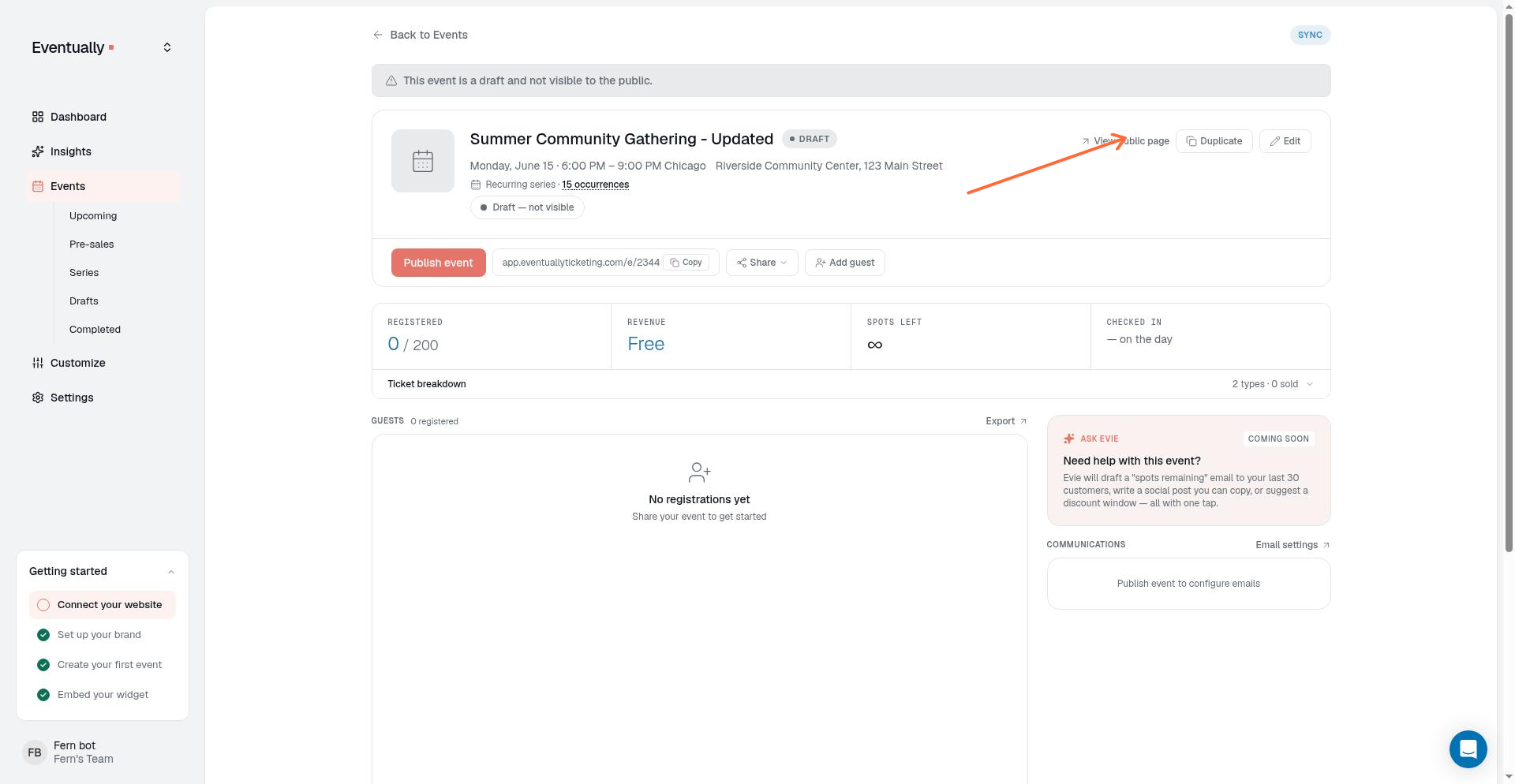
We create a new draft event with the same settings, named after the original with (Copy) at the end. Review the copied details and update the title or dates if needed.
Publish the event when ready.
On a completed event, the main button on the event page reads Run it again, and on a cancelled event it reads Duplicate event. Both make the same copy.
What gets copied
The new draft keeps the original event's setup:
Title, description, and location
Dates and times (update them before publishing if needed)
Categories, tags, and images
Ticket types with their pricing, original price (sale display), capacity limits, sale windows, and per-order limits
Custom registration fields
Waiver settings
Registration settings, including When to collect guest details and Ask for every guest's details
What starts fresh
A few details are always reset on the copy:
Attendee list: the new event has no registrations
Squarespace product: the copy is not linked to the original event's Squarespace product
Duplicating any date of a series creates a single standalone event, not a copy of the whole series. This applies to every date in a series, including a series without a repeating pattern. You'll see the confirmation: "Event duplicated as a single event." An Event Series product itself cannot be duplicated.
Related guides
Creating recurring events: Set up a repeating schedule
Edit an event: Update event details before publishing