
How to add a waitlist to a sold-out event
By Kelsey Gilbert-Kreiling | Co-founder, Eventually
The short answer: Put the waitlist exactly where people discover the event is full, collect a name and email, and decide in advance how you'll offer an open seat. On Squarespace, you can turn on product waitlists for sold-out service products. For events, you'll also want the waitlist to follow each date and give you control over who gets the next seat.
Why every popular event needs a waitlist
Someone who clicks a sold-out event picked the date and was ready to pay. Without a waitlist, that interest leaves with them. With one, you can refill cancellations, see real demand, and know when to add another date.
Your waitlist options on Squarespace
Option 1: Squarespace product waitlists
Squarespace's product waitlists let shoppers leave their email on a sold-out product's detail page. They work for physical and service products and are available on most current plans.
What works: It's built in, and it appears right where the product shows as sold out.
What breaks: It's designed for restocks. It shows on product detail pages only, so guests browsing your calendar won't see it. When a seat opens, the note goes out to the list, and whoever checks out first gets the spot.
Option 2: A form on the event page
Add a form block under the sold-out event: name, email, and which date they want.
What works: You control the questions and can place it anywhere, including your calendar page.
What breaks: Nothing connects it to your inventory. You'll watch for cancellations yourself and email people one by one.
Option 3: A waitlist built into your ticketing
Use event ticketing where the waitlist belongs to each date and knows when a seat opens.
What works: Seats go to specific people in order, and nobody has to watch an inbox.
What breaks: It requires a ticketing tool rather than Commerce alone.
How to run a waitlist well
1. Turn it on before the event fills
If a class has sold out before, assume it will again. A waitlist added after the rush misses the people who came during it.
2. Collect only what you need
Name, email, and the date they want. Party size if you sell group tickets.
3. Decide how seats get offered
Either offer the seat to the next person in line with a deadline to claim it, or notify everyone and let the first to book take it. In line is fairer. First come is faster. Pick one and say which on the page.
4. Set a claim window
Give each person a set amount of time to accept, such as 24 hours, or 2 hours when the event is close. Then move to the next name.
5. Tell people what to expect
A line like "We'll email you if a spot opens, and you'll have 24 hours to claim it" prevents a lot of follow-up questions.
6. Use the list to plan
When a waitlist reaches half your capacity, that's a strong signal to add another session and offer it to the list first.
How waitlists work in Eventually
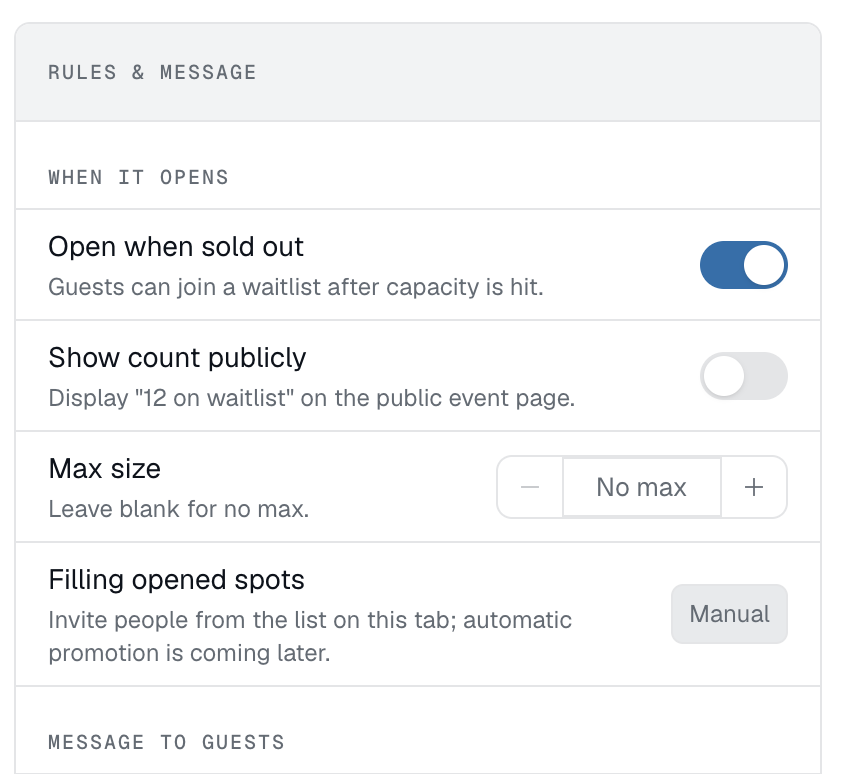
Eventually is event ticketing for calendar-centric businesses, built as a Squarespace-first extension, with checkout through your Squarespace Payments or Stripe account.
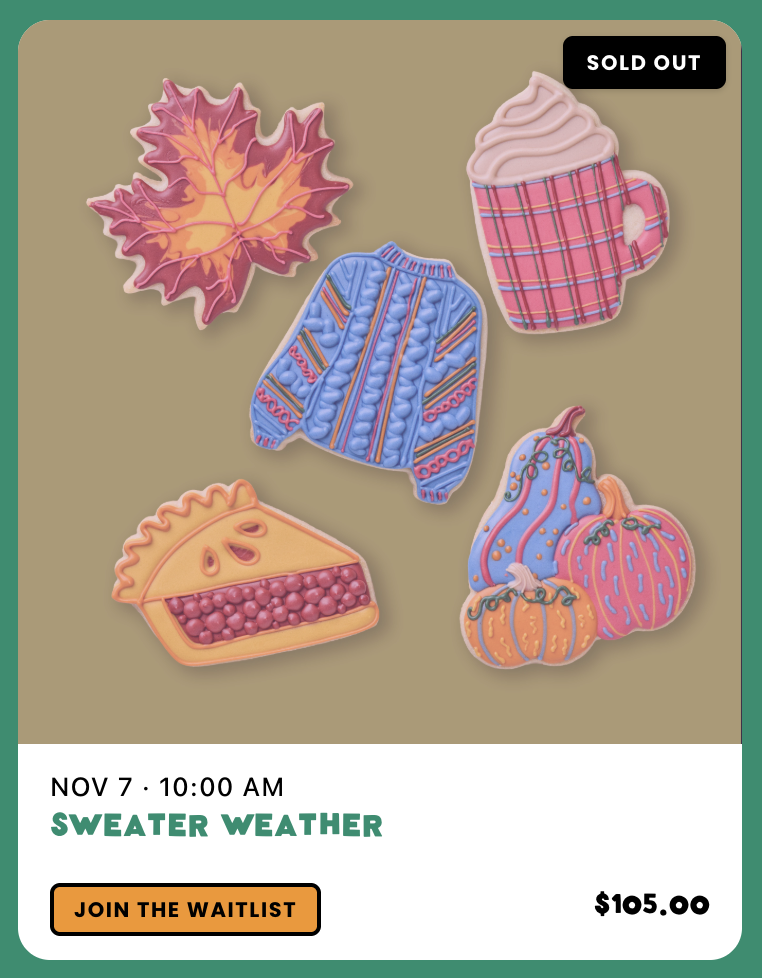
Waitlists belong to each event. Turn one on for a single event, or set a team default so every new event starts with one. When an event is at capacity, visitors see a waitlist option instead of a dead end. When a seat opens, you promote guests off the waitlist and set an acceptance window for them to claim it. See Waitlists for sold-out events and the help center guide on promoting guests off the waitlist.
What to do right now
If your event just sold out: Turn on a waitlist today, even a simple one. Cancellations usually come in the final week.
If you use Squarespace product waitlists: Link to the product page from your calendar so guests can find the signup.
If you manage a waitlist by email: Write down your claim window and your order, so every open seat is handled the same way.
If your waitlists are long: Add a date and pre-sell it to the list before announcing it publicly.
The bottom line
A sold-out sign ends the conversation. A waitlist keeps it going.
The people who couldn't get in this time already chose you. Give them a way to stay in line for the next seat.
Keep reading:
→ What to do when your event sells out: share your calendar anyway
→ How to run an event pre-sale (and turn your waitlist into new dates)
See it in action:
Keep the line moving
Add a waitlist to every popular event and offer open seats in order, right on your Squarespace site. Get started at eventuallyticketing.com.