
Why your event calendar should match your brand on Squarespace
The short answer: Your event calendar is where browsing turns into buying. If it looks like it belongs to a different website, with off-brand fonts, clashing colors, or a boxy default style, guests hesitate at the exact moment you need them to commit. A calendar that matches your site reads as part of your business, and that keeps people moving toward checkout.
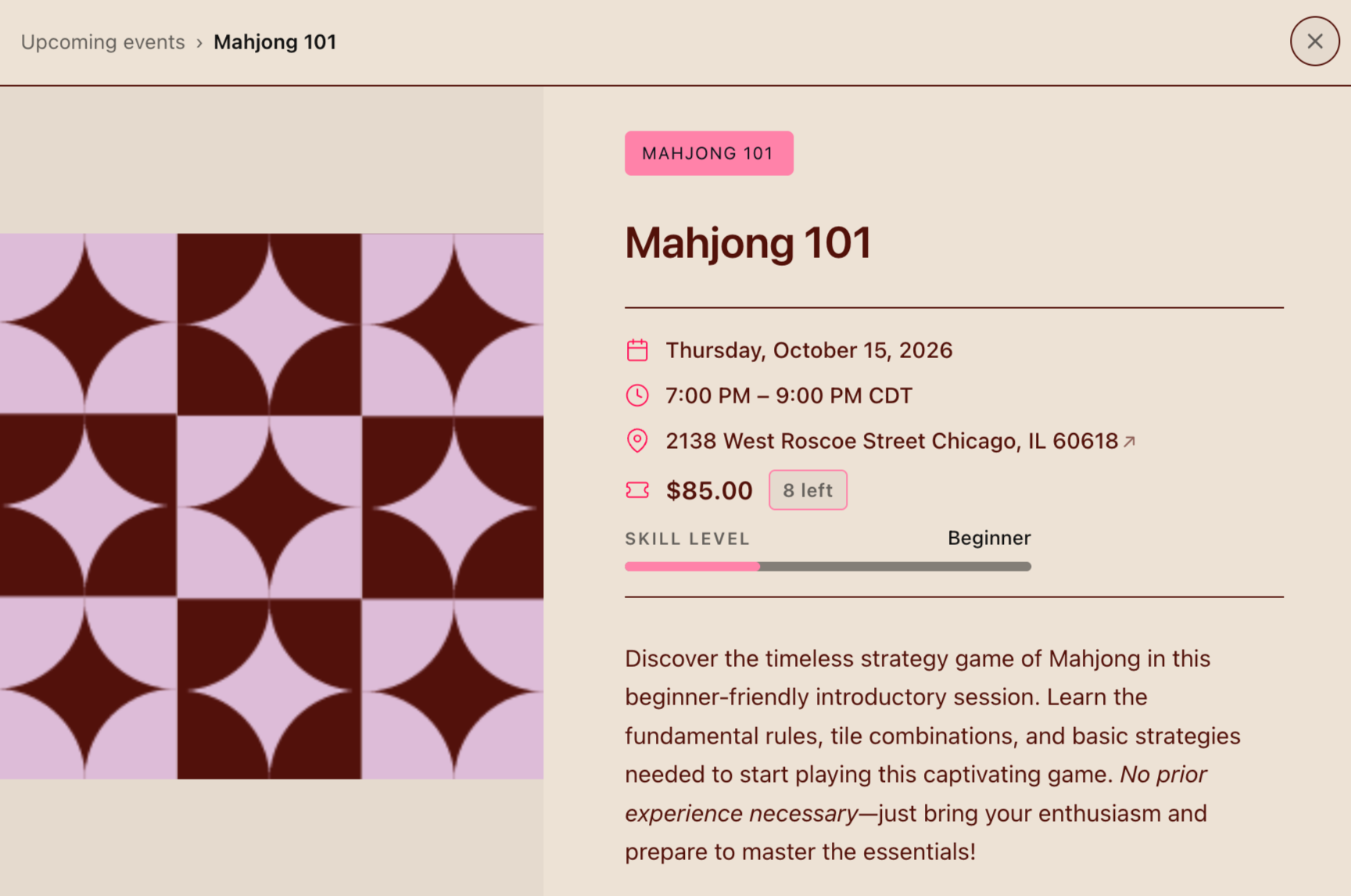
Why a mismatched calendar costs you
You picked Squarespace because design matters to you. Your fonts, your colors, your photography: all of it tells a guest what kind of experience they're about to have.
Then the calendar loads, and it looks like someone else built it. Brittani Millington, who builds brand experiences on Squarespace and is a member of Eventually's Founding Circle, says ticketing "has always been the part where the brand experience falls apart." Squarespace users in forums call it the thing that "breaks my brand," and it costs more than it seems:
Trust dips right before payment. A sudden change in look makes guests wonder whether they're still on your site, right when they're about to enter card details.
The site feels unfinished. A polished homepage next to a default-styled calendar reads as a business that ran out of time.
The feeling doesn't carry through. Guests who found you on Instagram expect the calendar to feel like the account they followed.
None of these show up as a line item. They show up as people who looked at a date and didn't book.
What matching your brand actually means
It's more than setting the button to your brand color. A calendar that matches your site lines up on:
Typography: the same fonts as your site, or a close match
Color: text, accents, buttons, and background
Shape: corner radius, borders, and dividers
Spacing: how dense or airy the layout feels
Imagery: event photos that look like the rest of your site
Words: event titles and descriptions written in your voice
The path after the click: event page, checkout, and confirmation email
How to make your event calendar match your brand
1. Start from your site's actual values
Open Site Styles in Squarespace and note your heading and body fonts, your color hex codes, your button style, and your corner radius. A screenshot of your homepage next to those notes gives you a reference for every decision after.
2. Choose the view that fits the page
A month view suits dense, recurring schedules. A list view works when you have a handful of upcoming dates. Card view is best when photos do the selling, like a supper club or a floral workshop.
3. Match color and buttons first
Text color, accent color, and button style do most of the work. Get those three right and the calendar already feels closer to home.
4. Check that your fonts actually loaded
A calendar set in Arial on a site set in a serif is the most common giveaway. Some embedded calendars can't see the fonts your site loads and quietly fall back to a default, so look at the rendered page rather than the settings screen.
5. Check it on your phone
Most guests will meet your calendar on a small screen. Make sure dates are easy to tap, text is readable, and the layout doesn't feel cramped.
6. Buy a ticket yourself
Click from your homepage through checkout to the confirmation email. Every step should feel like the same business.
How to style your event calendar in Eventually
We built Eventually because Squarespace users kept settling for calendars that couldn't sell and didn't match. Christy Price of Somewhat Useful, a Founding Circle member, summed up where things stood: "Until you, the go-to was: embed a Google Calendar. That was as good as you could get."
Eventually is event ticketing for calendar-centric businesses, built as a Squarespace-first extension. The calendar widget embeds on your Squarespace page in month, list, or card view, and checkout runs through your own Squarespace Payments account.
Styling happens in two places, and knowing which one you want saves most of the work.
Global Styles sets your brand once
Go to Customize, then Global Styles. This is where your logo, colors, and fonts live, and what you set here carries across every calendar you build, your hosted event pages, and the emails that go out to guests.
Start by importing from Squarespace. Brand sync pulls your logo, colors, and fonts from your site so you aren't retyping hex codes from memory.
One thing sync does not bring over: heading and body text colors. Those are never synced, so set them yourself right after. It's the single most common reason a calendar still looks slightly off after someone has imported everything else.
Supported Google fonts load on their own. If your brand font comes from somewhere else, you'll need an @font-face snippet in the Advanced CSS field inside Global Styles, pointing at the font file directly.
The calendar editor handles one calendar at a time
Each calendar has its own Colors and Layout sections. Anything you change there applies to that calendar's embeds and leaves the rest alone. This is where you go when the calendar on your workshops page should feel different from the one on your private events page.
Advanced CSS is the escape hatch, in both places
Both Global Styles and the calendar editor have an Advanced section for custom CSS, and which one you use decides the reach: CSS in the calendar editor styles that calendar's embeds, CSS in Global Styles styles all of them.
A few rules worth knowing before you write any:
Selectors have to start with the widget's own .ev- classes. Anything else won't apply.
Only @media, @supports, @keyframes, and @font-face are allowed. Import lines won't survive, which is why custom fonts need @font-face rather than a Google Fonts or Adobe Fonts link.
The field holds up to 64 KB, which is far more than a brand match needs.
Use straight quotes around font names. Curly quotes from copy and paste will quietly break the rule.
Hosted event pages follow a widget you choose
If you're sending guests to Eventually-hosted event pages, go to Customize, then Event Defaults, then Event page style, and pick a widget. That widget's styling carries to those pages, so they match the calendar guests came from.
Where changes show up
Widget builder and Event Defaults changes reach your embeds on their own. Global Styles CSS has to be saved before it takes effect, which catches people out when they tab away expecting a live update.
Live Preview walks the full visitor journey, so use it to check the whole path rather than one screen.
What to do right now
If you're embedding a Google Calendar: It can show dates, but it can't sell tickets or show capacity. Guests still have to leave to buy somewhere else.
If your current widget won't take your fonts or colors: Check what you can actually control. If the answer is almost nothing, that's your answer.
If you build sites for clients: Set each client's brand once in Global Styles. Every calendar you build for them after that starts matched.
If you already use Eventually: Open Global Styles, run brand sync, then set your heading and body text colors by hand. Check the result on your phone.
The bottom line
Guests rarely notice a calendar that matches. They always notice one that doesn't.
You put real care into making your site feel like your business. Your calendar is where people decide to show up, so let it look like the place they're about to walk into.
Keep reading:
→ Squarespace Event Calendar Widget: Your Options Compared
→ How Squarespace Agencies Can Manage Client Events
See it in action:
Make your calendar look like your site
Embed a calendar widget you can style to match your Squarespace brand, with checkout on your own site. Get started at eventuallyticketing.com.