
Send a broadcast to attendees
You can send a one-time broadcast email to registered guests from the Communications panel on any event detail page.
Only team owners and admins can send a broadcast.
When the composer is available
The inline broadcast composer appears in the Communications section under different conditions depending on the event status and guest count.
Published events: the composer appears regardless of automated-email configuration, including events with no guests yet.
Draft or cancelled events with guests: the composer appears whenever there is at least one registered guest. The Automated emails header is hidden when there are no automated emails configured, so the panel shows only the broadcast composer. You can send a broadcast even though the event is not published.
Draft or cancelled events with no guests: the composer is hidden. Drafts show Automated emails will appear after the event is configured; cancelled events show Event is cancelled.
Compose a broadcast
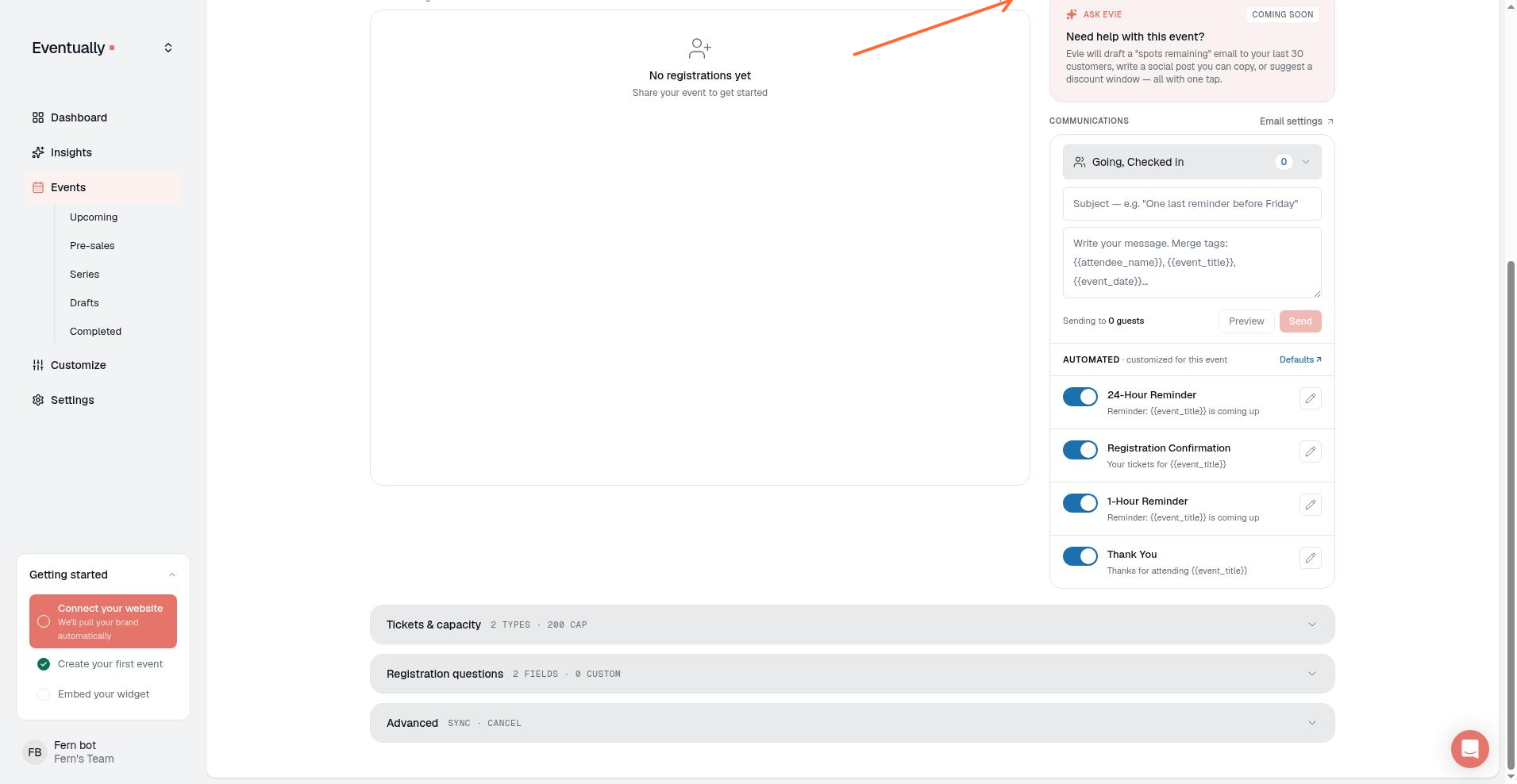
Open the event detail page and scroll to the Communications section. When the composer is available, you will see:
Audience picker: choose recipients by status (Going guests who have not checked in, Checked in, Waitlist, and No-shows once the event is over) and by ticket type.
Subject: enter a subject line.
Message body: compose your message in the rich-text editor. Use bold, italic, underline, headings, links, lists, images, and alignment to format your message. Insert merge tags such as
{{attendee_name}},{{event_title}}, and{{event_date}}to personalize it.Recipient count: a line showing how many guests will receive the email.
Preview and Send buttons.
Broadcast composer formatting
The broadcast composer uses the same rich-text editor as the email template editor. The toolbar includes:
Bold, Italic, and Underline
Heading styles
Link and Insert image
Bullet list and Numbered list
Text alignment: Align left, Align center, and Align right
Insert tag: add merge tags such as {{attendee_name}}
Broadcast body content is stored and previewed as HTML, so formatting is preserved in the delivered email.
Send the broadcast
Click the audience picker and choose the statuses or ticket types you want to reach.
Enter a subject line.
Write your message using the rich-text toolbar for formatting, links, images, and merge tags.
Click Preview to review how it will look.
Click Send to queue the broadcast for delivery. A background job sends the emails to your guests after you click Send.
After you send
The broadcast appears in the event's Sent list with its subject, recipient count, and delivery status. Click it to see each recipient's delivery result and the copy each person received. See View sent emails and delivery status.