It's been a month since we joined the Squarespace Extensions Marketplace and boy have we shipped a LOT this month. The big one is Promote, and we can't wait to show it to you-
Promote: event graphics, posts, stories and fliers for your events
Every event now has a Promote button, on every plan, including Free.
Everything automatically matches your Global Styles, so there's no Canva required and no rebuilding the same graphic every time you add a date. There isn't just one look, either. Some looks use your event photo, some use just your brand colors, and Shuffle looks gives you a fresh set. There are three ways to use it:

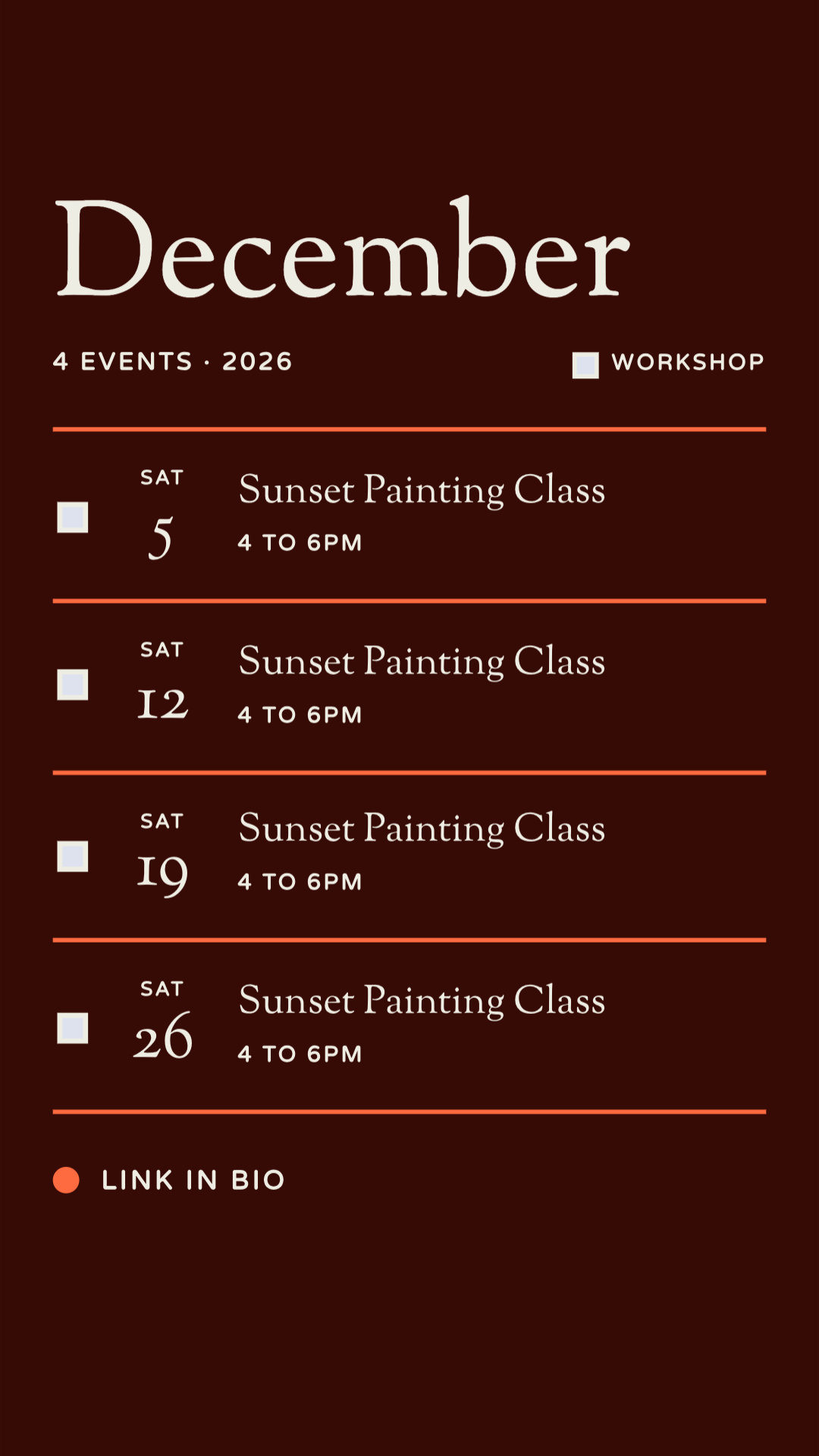


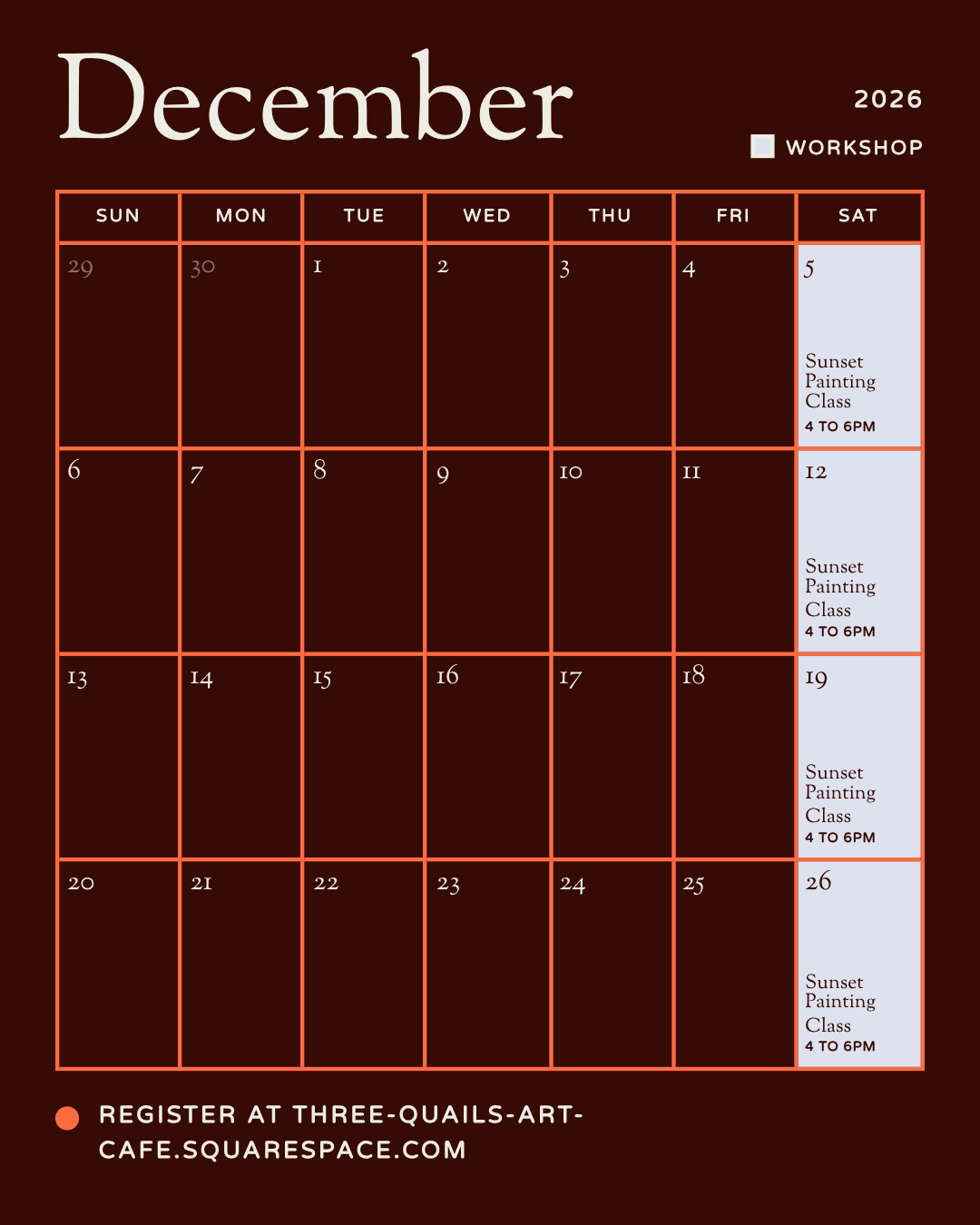
One class
Open any event and click Promote next to Share. You get social posts and stories in five looks each, plus a printable flier with your price, details and a QR code that goes straight to registration. Download the looks you like and upload them to whichever networks you use. The event link is right there to copy.
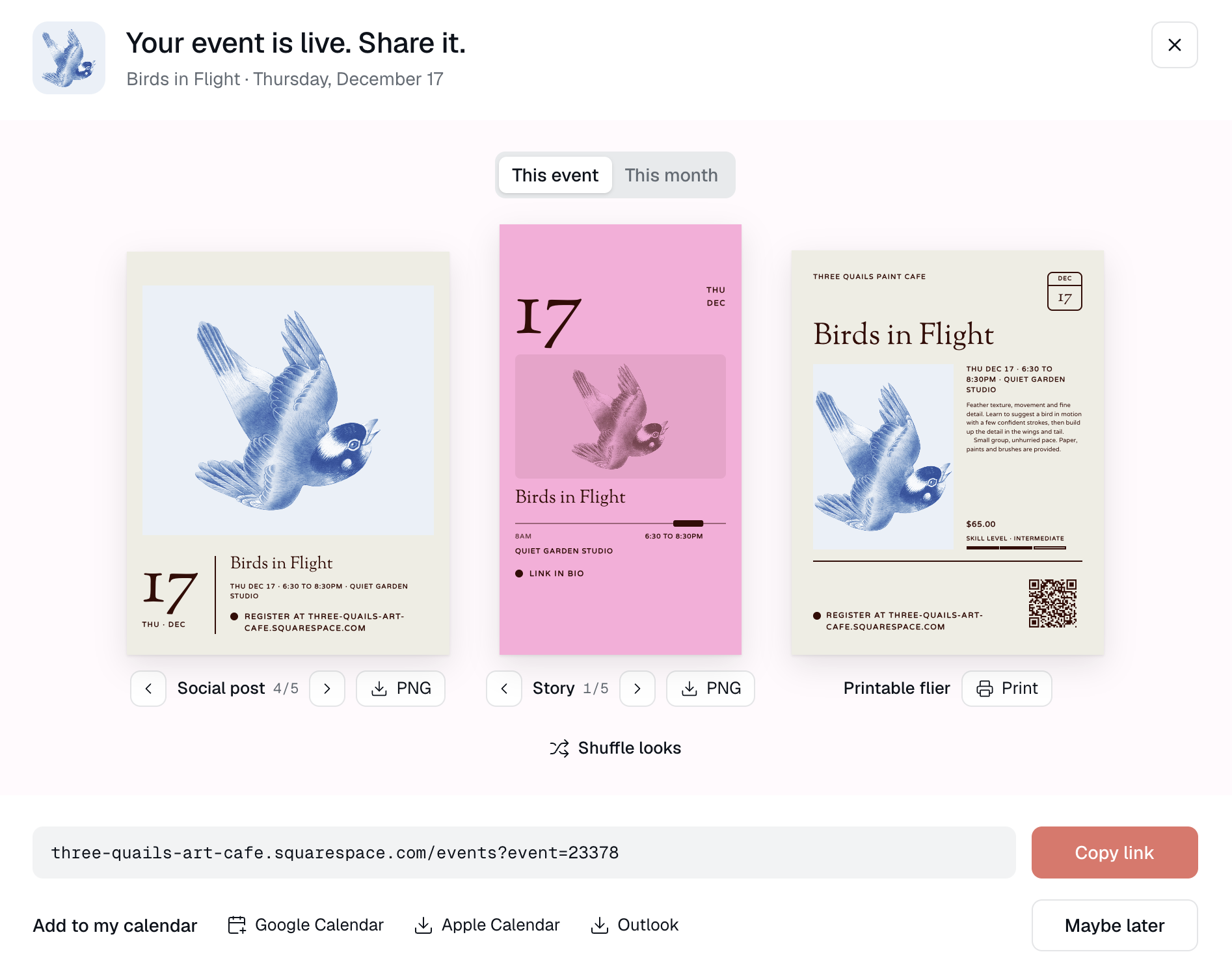
You'll notice there is also an easy way to add your own event to your calendar with Google, Apple and Outlook buttons. You'll get an easy link to share your event details. Time saved? Plenty.
Want to go a little deeper on creating fliers that actually get scanned? Here's how to create a QR code for an event.
A week, a month or a category: your monthly event calendar
We didn't stop at just making it easier to share an individual event. Skip the clicking into tiny boxes while you create social assets- just select Promote at the top of the Events list to cover a stretch of dates.
Pick a week, a month, every event in a category, or hand-pick the events you want. You get a calendar post, an agenda story with every date listed, and a calendar flier with a QR code to your events page.
Speaking of calendars…
Any calendar can now live at its own address, with no Squarespace page or embed code.
Build a calendar of just the dates you're promoting, set the URL and share it. The page automatically matches your Global Styles, plus the choices you've made for that calendar: layout, image shape, where tickets sit and how seat counts read. It's the link your agenda story's "link in bio" should point to, and it works in a newsletter or on a partner's site too.
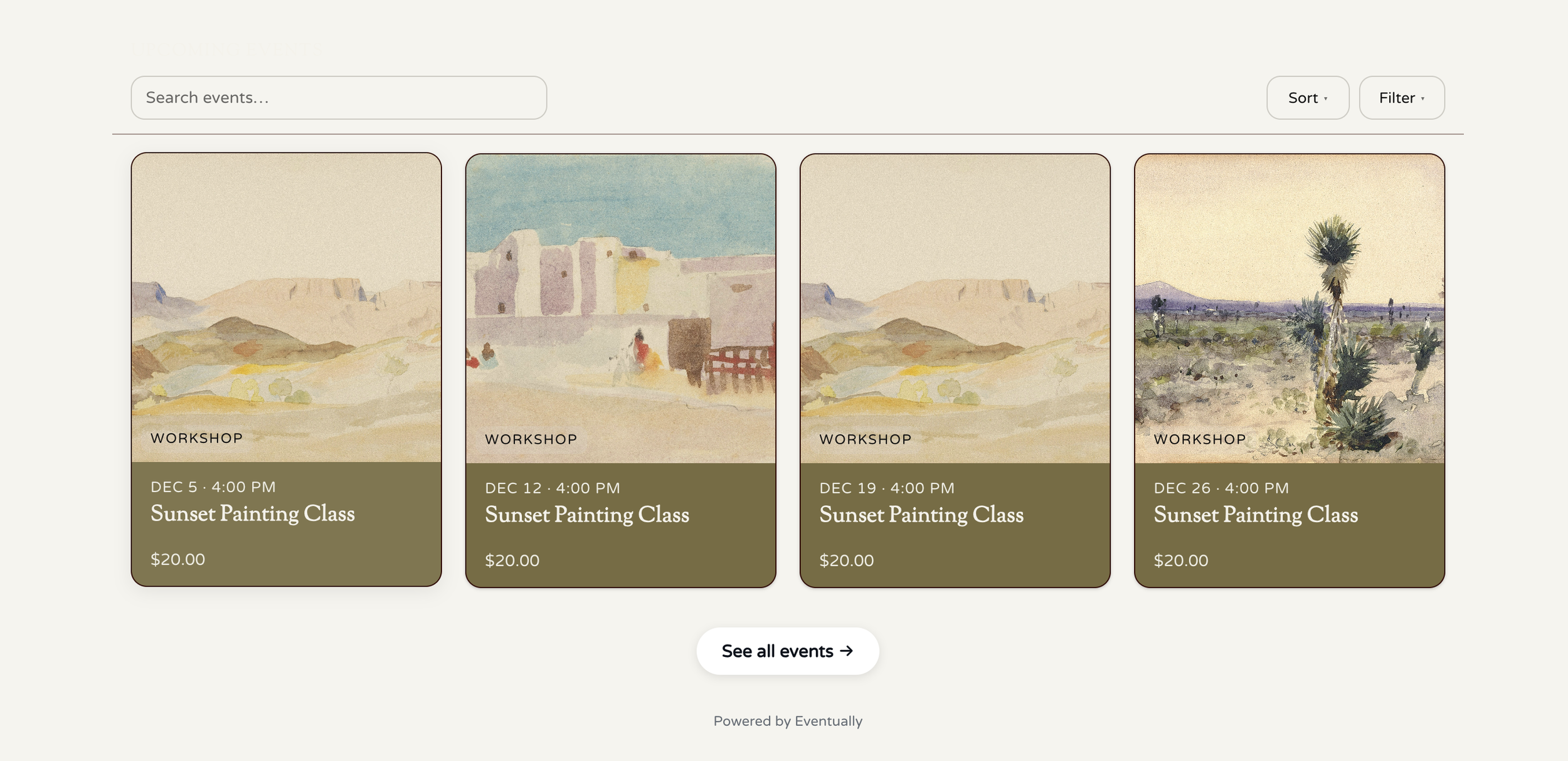
Where to find it: open a calendar in Calendars and turn on Hosted page.
Other new updates
Import from Squarespace: turn a client's existing service products into draft events. Nothing in the store changes until you publish.
View-only team members: for the bookkeeper, the board member, or you after handoff.
Remove "Powered by Eventually" on Essentials and up.
Styling: ticket placement, a sticky ticket bar on phones, image shape per calendar, and how seat counts read.
AI assistants on every plan, including Free, plus one switch that turns AI off entirely for clients who don't want it.
Set a minimum to run: set how many people a class needs. If it's short, sales close and you get an email. Nothing is cancelled until you decide.
Prep emails: the morning before each class, see who's coming, who hasn't paid and who hasn't signed the waiver.
Co-hosts: share an event with an instructor or venue without handing over your account. They don't take a team seat.
Private events: keep events off your calendar and out of search, while still allowing anyone with the link to buy.
Series and Multiple Dates: manage a series' tickets in one place, and guests get a reminder before every date.
Excel and PDF guest lists, for whoever's working the door.
Small things that add up: registration answers in your New Registration email, guest history, why an email was skipped, and access codes shown up front.
Calendar sync: save all of your events to your personal calendar so you never miss a date.
→ How to create a QR code for an event
→ How to Sell Event Tickets on Squarespace
Try Promote on your next event
Start free at eventuallyticketing.com.
Squarespace is a trademark of Squarespace Inc.