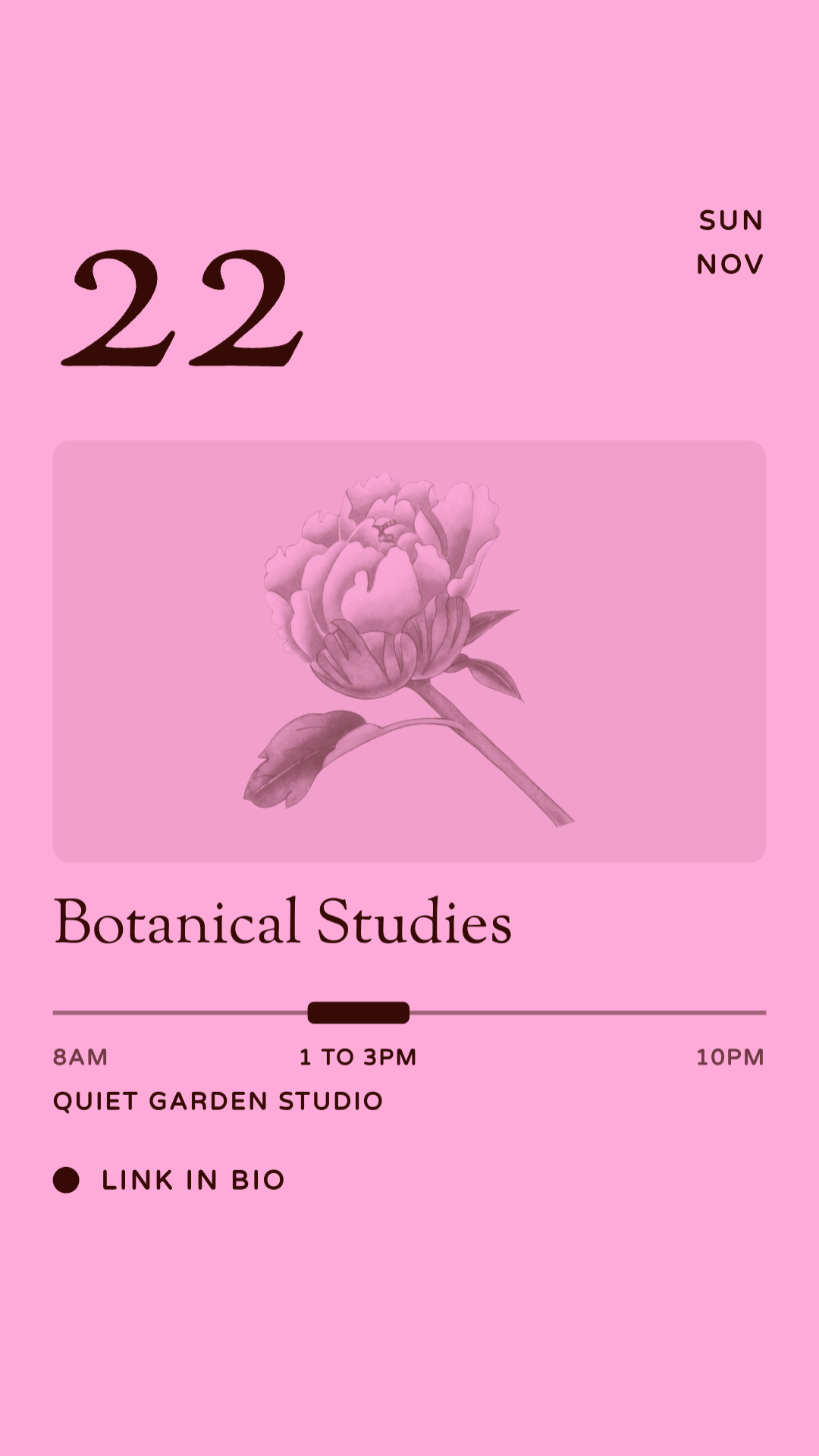
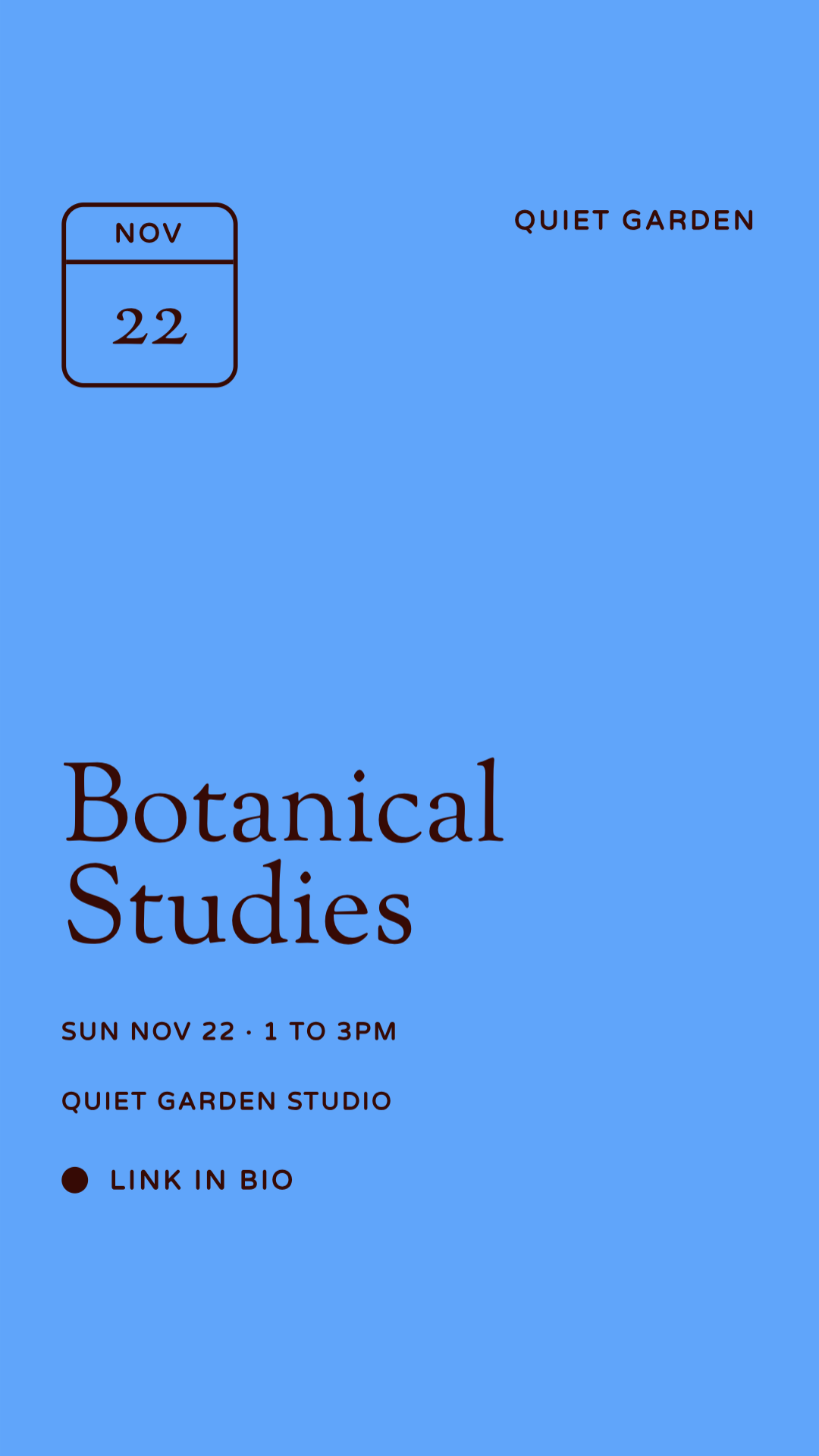
The short answer: In Eventually, use Promote. For a single event, it gives you a social post, a story and a printable flier with a QR code, all built from your event details. For your whole calendar, click Promote at the top of your Events page and share a month, this week or a category as one "Coming up" graphic.
If you run a full calendar, you know the end-of-month ritual: duplicate last month's calendar graphic in Canva, retype every date, export it in three sizes, and hope Thursday's class isn't listed as Tuesday. Promote replaces that. Because the graphics come from the same events your guests buy tickets for, the date on the flier is the date at checkout.
There are two ways to use it: share one event, or share your calendar. Here's how to do both.
How to make an event flyer and social posts for one event
Step 1
Open Promote on your event
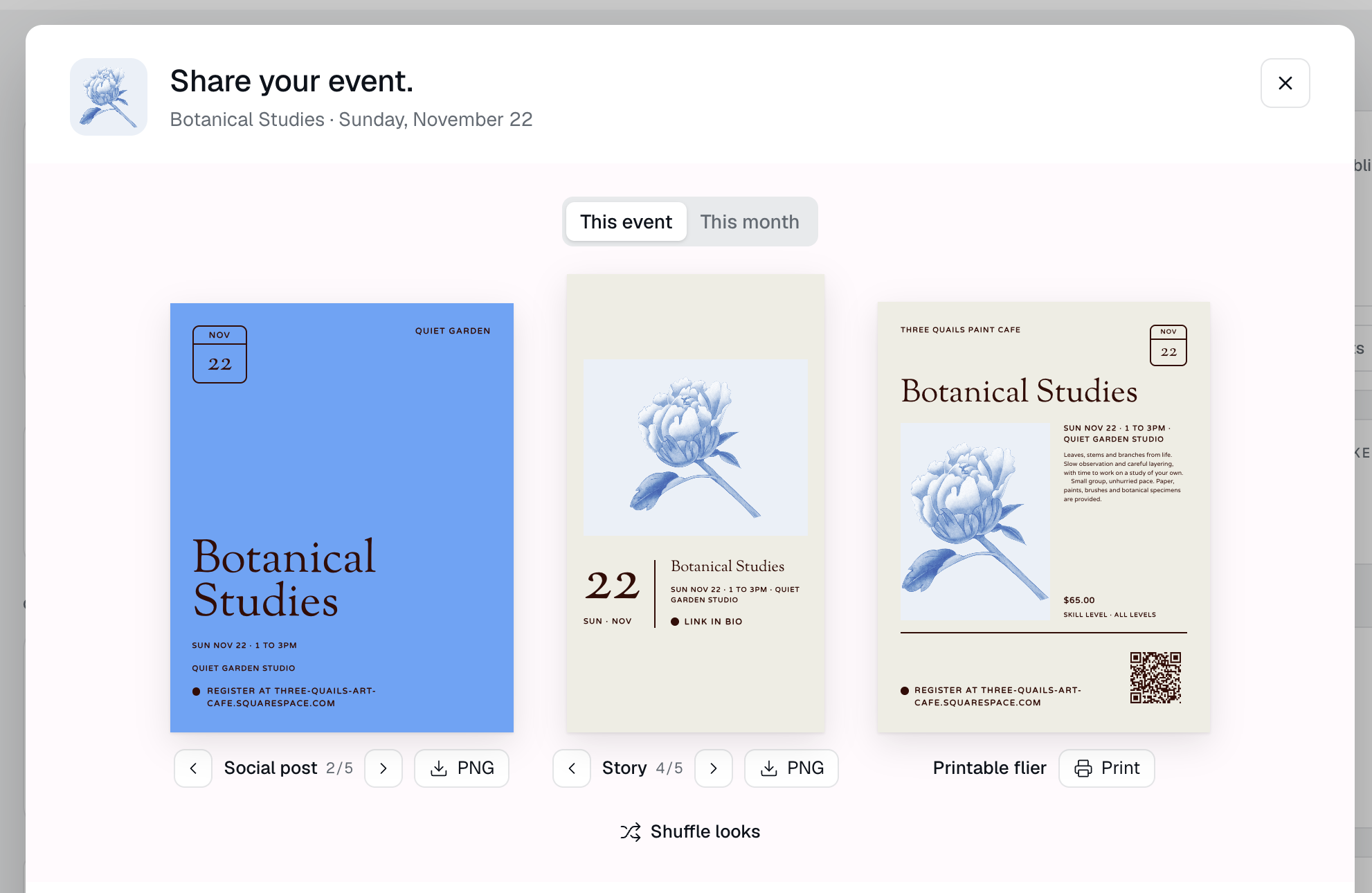
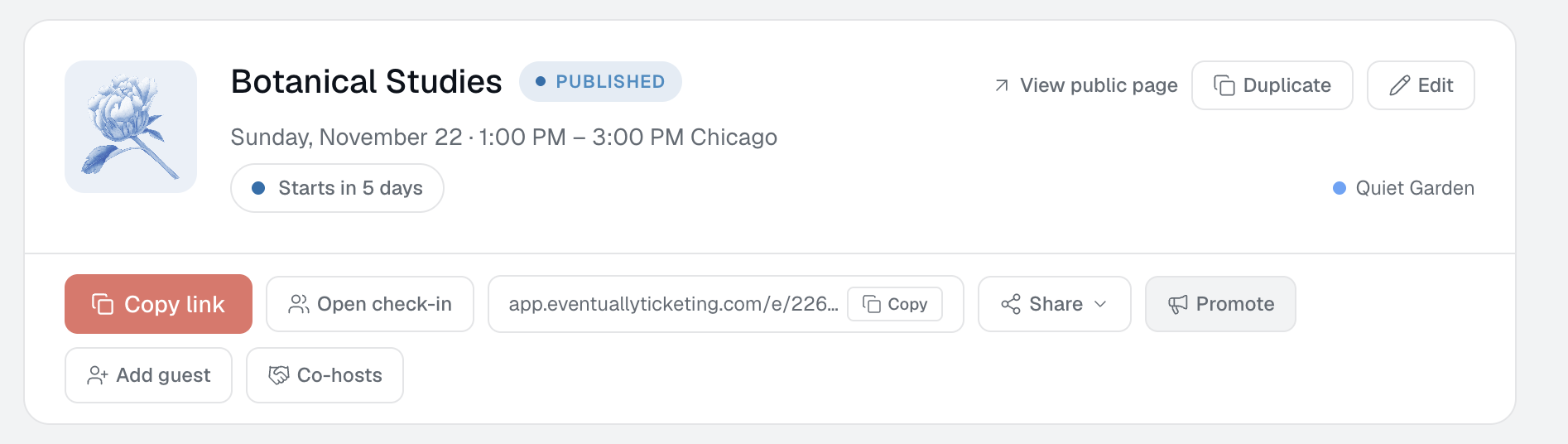
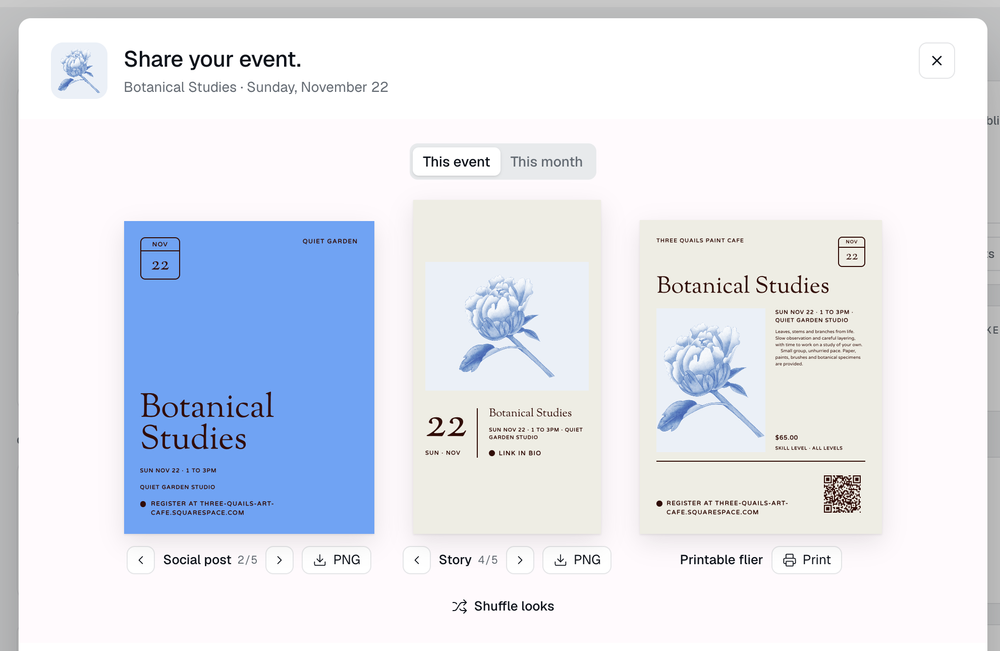
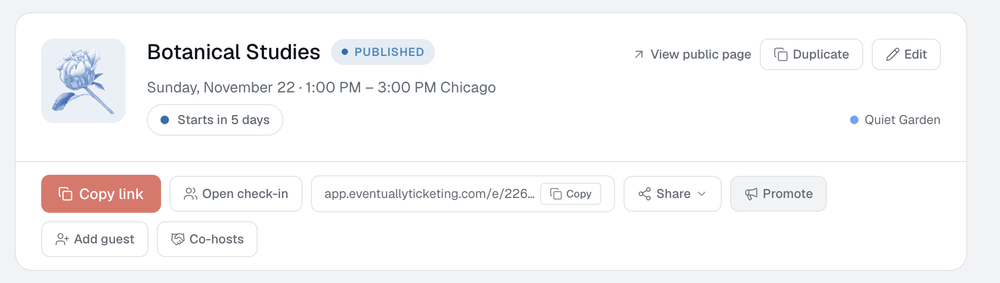
In your Eventually dashboard, open the event you want to share. Next to Copy link, Open check-in and Share, click Promote. The Share your event window opens with your event name and date at the top.
Step 2
Pick and download a social post
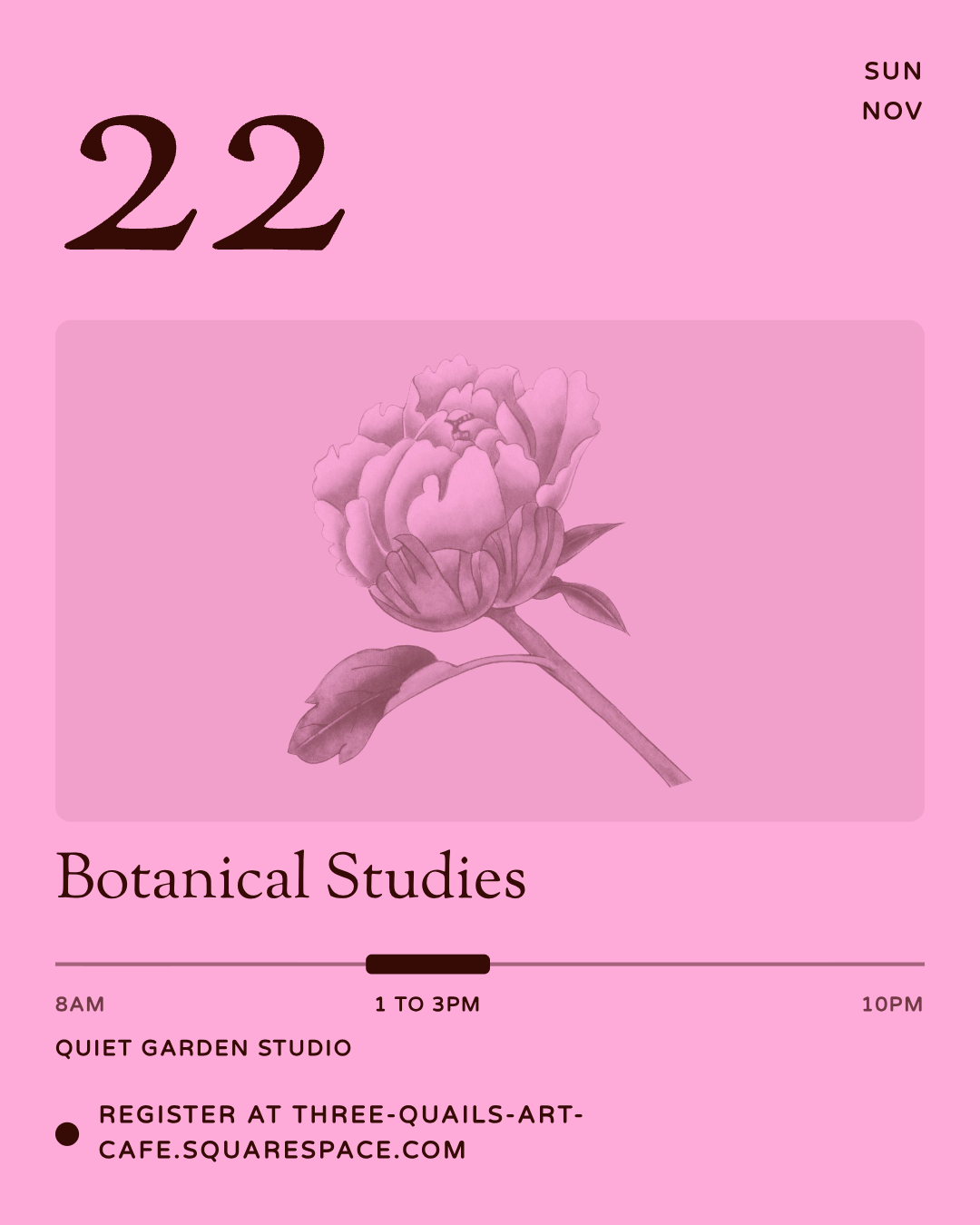
Use the arrows under Social post to flip through five looks, then click PNG to download. Posts are sized for the feed (1080 × 1350) and show your event name, date, time, location and where to register, so they work even if nobody reads the caption.

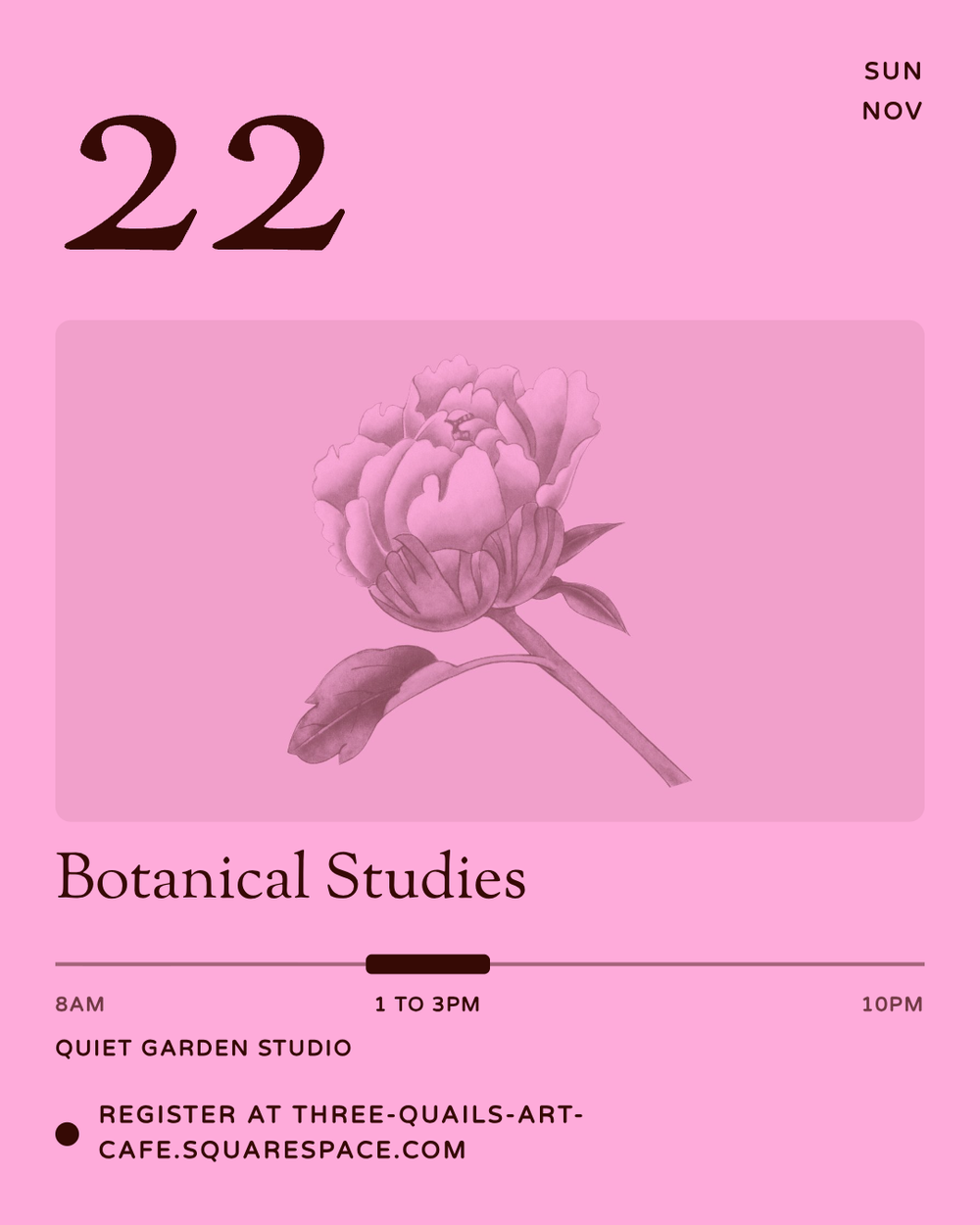

Same event, different looks. Pick the one that fits your feed.
Step 3
Pick and download a story
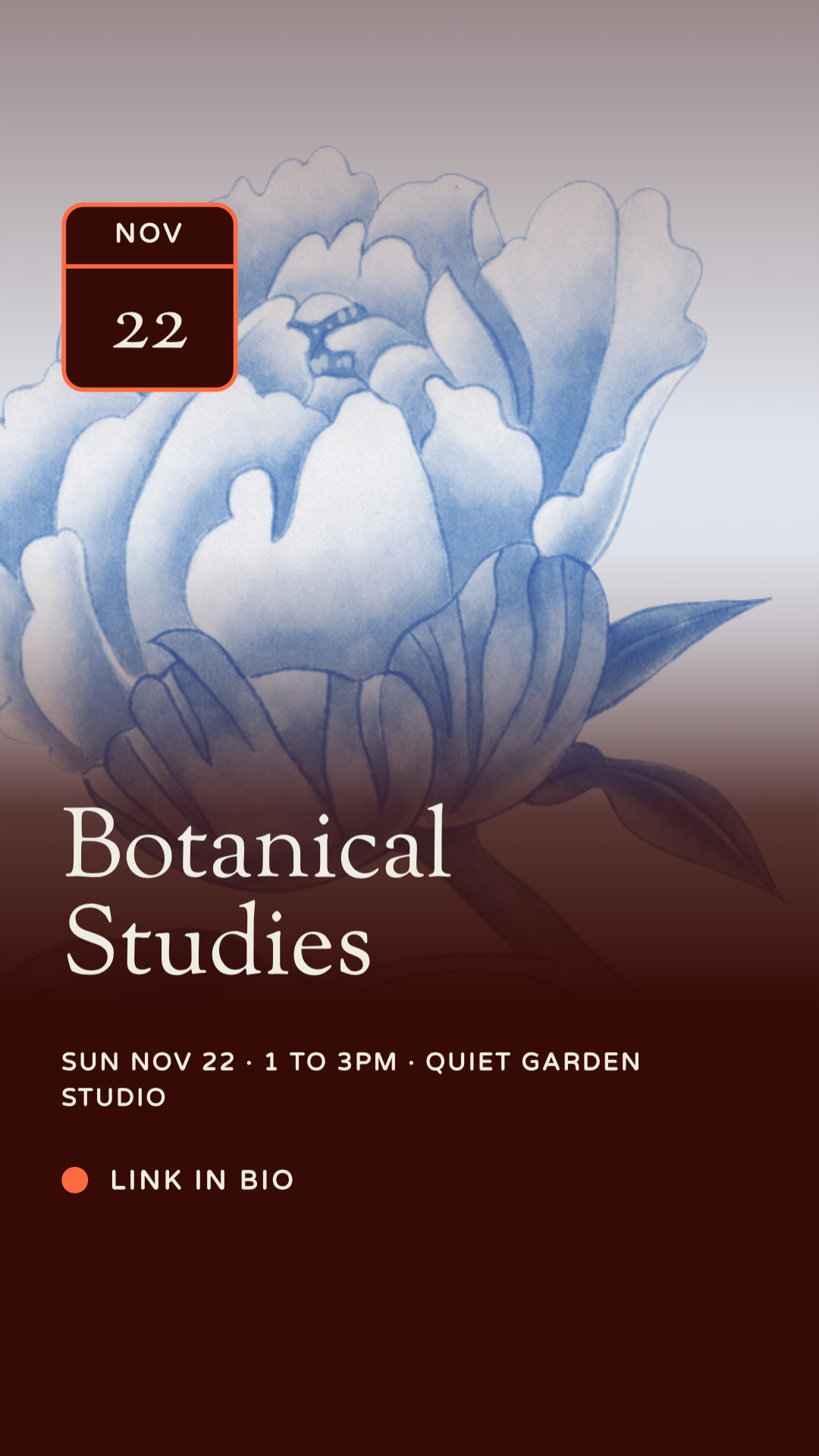
The Story column works the same way: five vertical looks (1080 × 1920), one-click PNG. Stories say "link in bio" instead of a URL, so add a link sticker when you post it and screenshots still point somewhere.
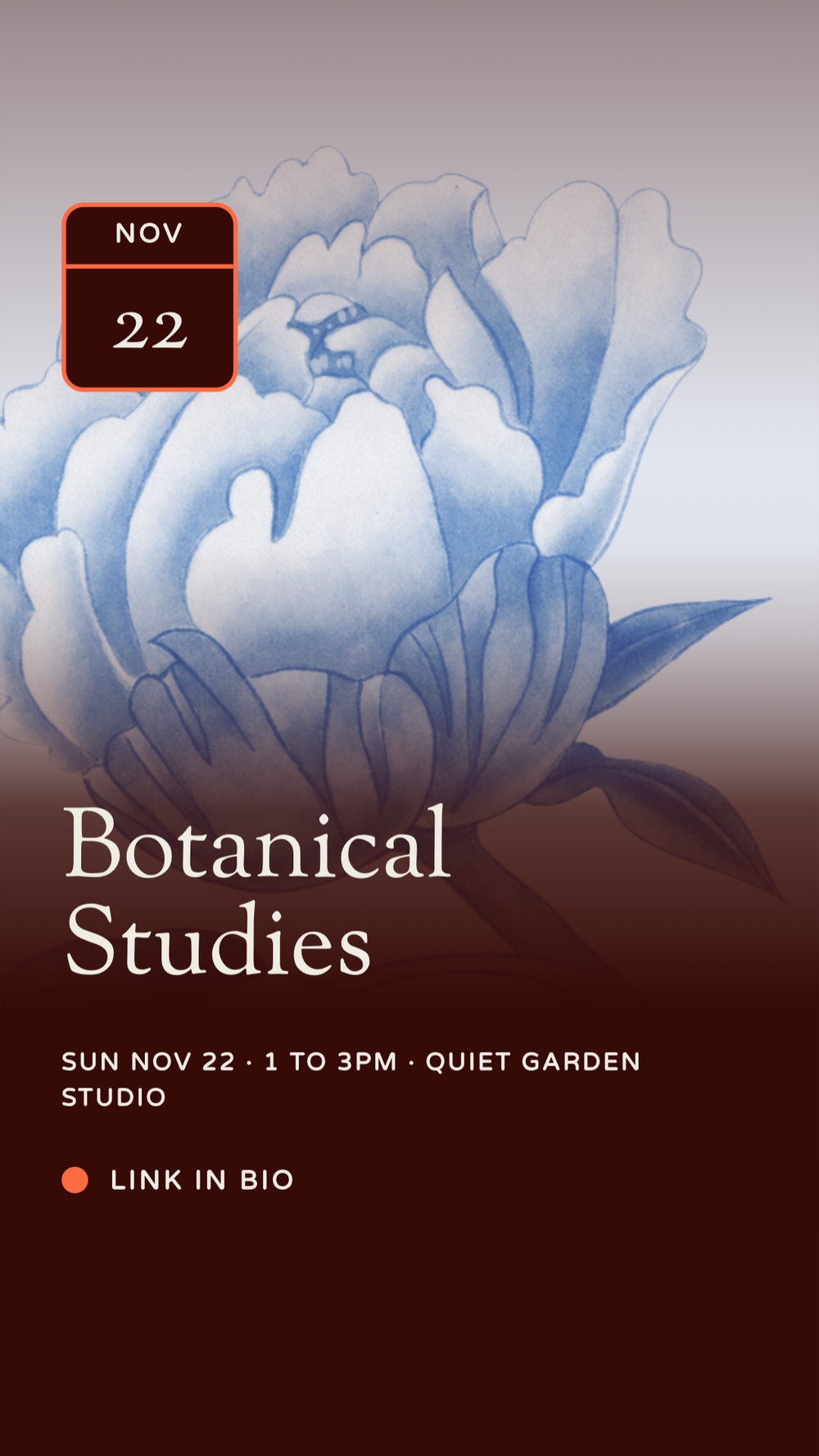

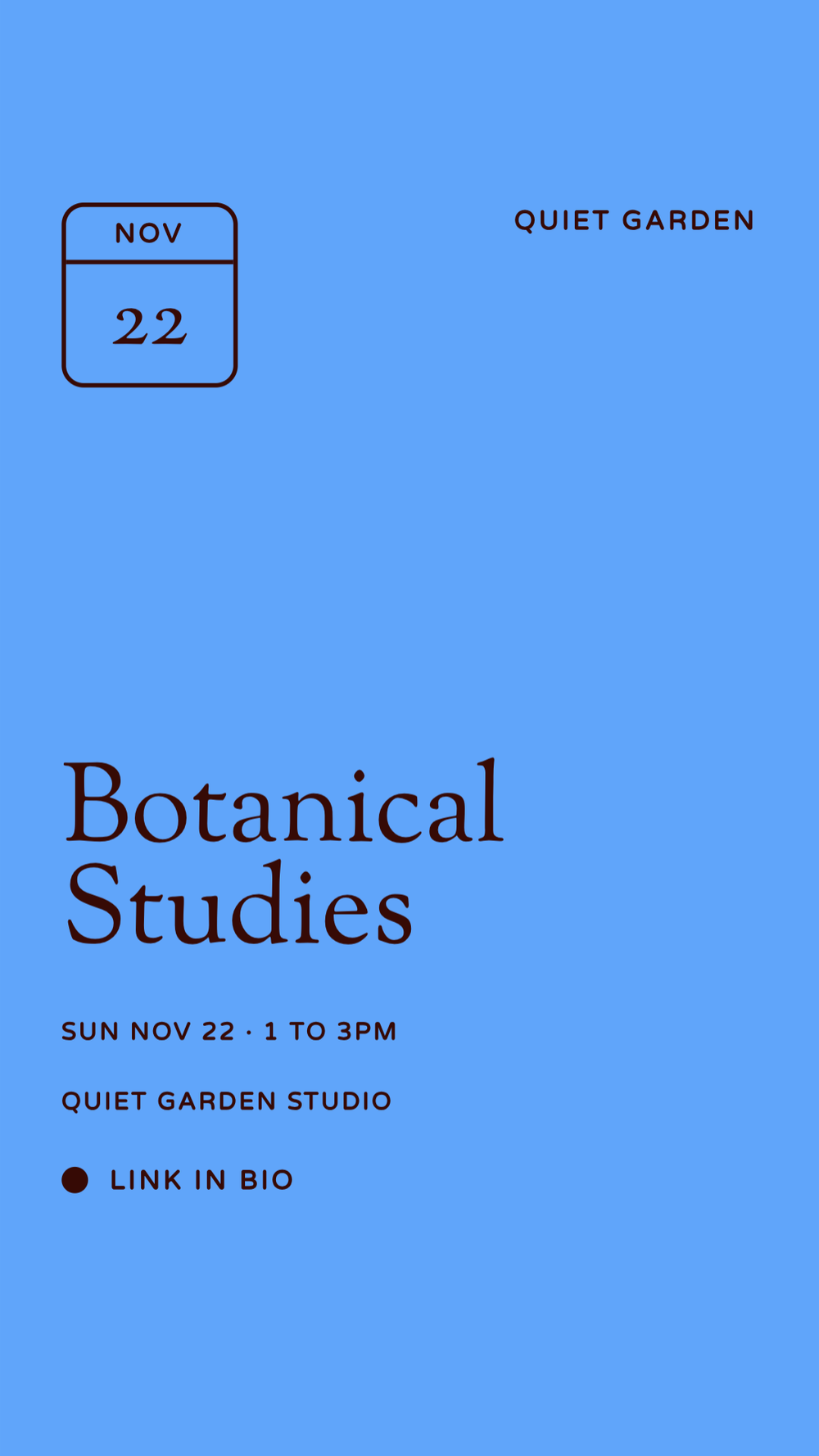
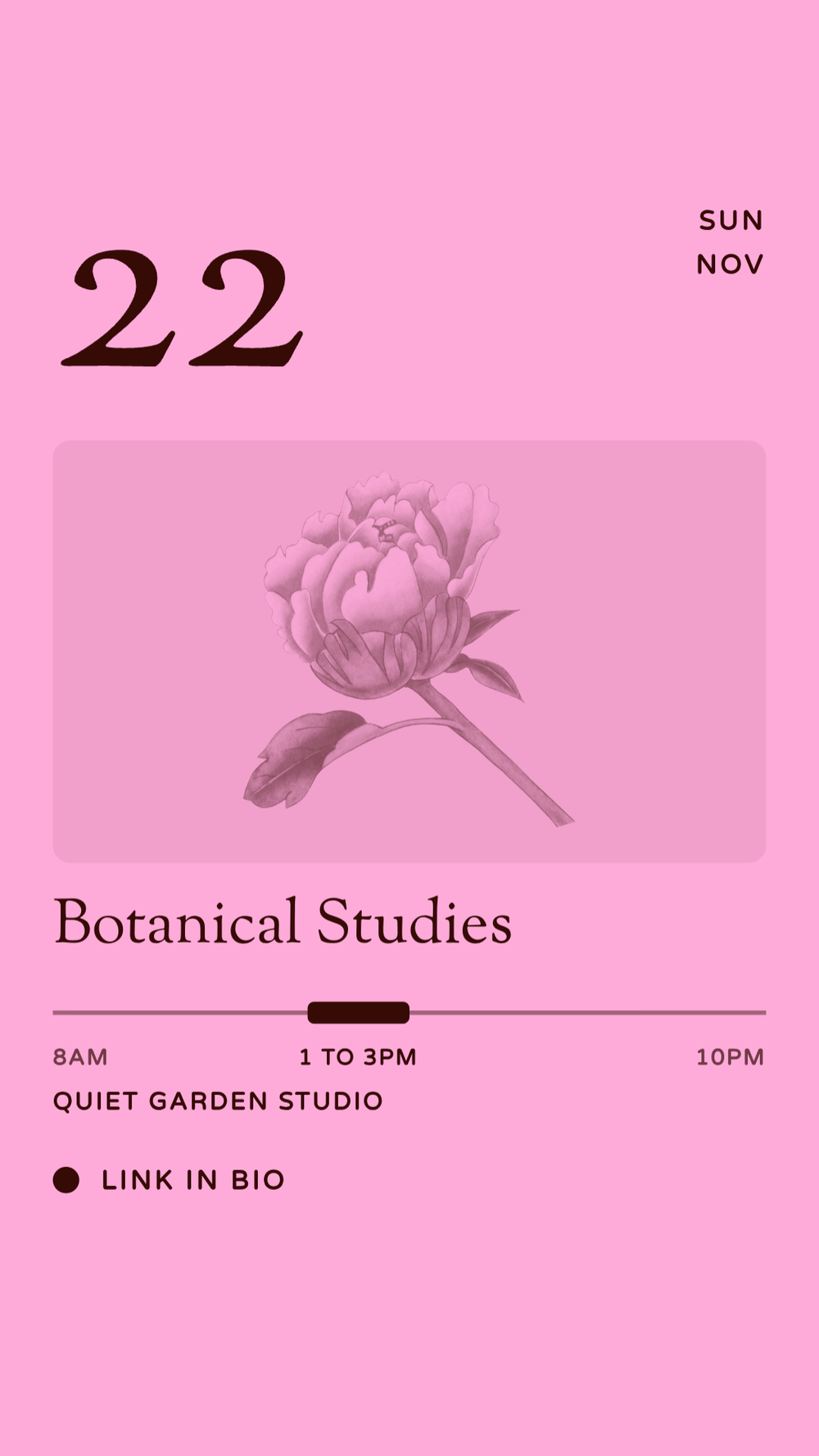
Stories leave room for a link sticker.
Step 4
Print the event flyer with a QR code
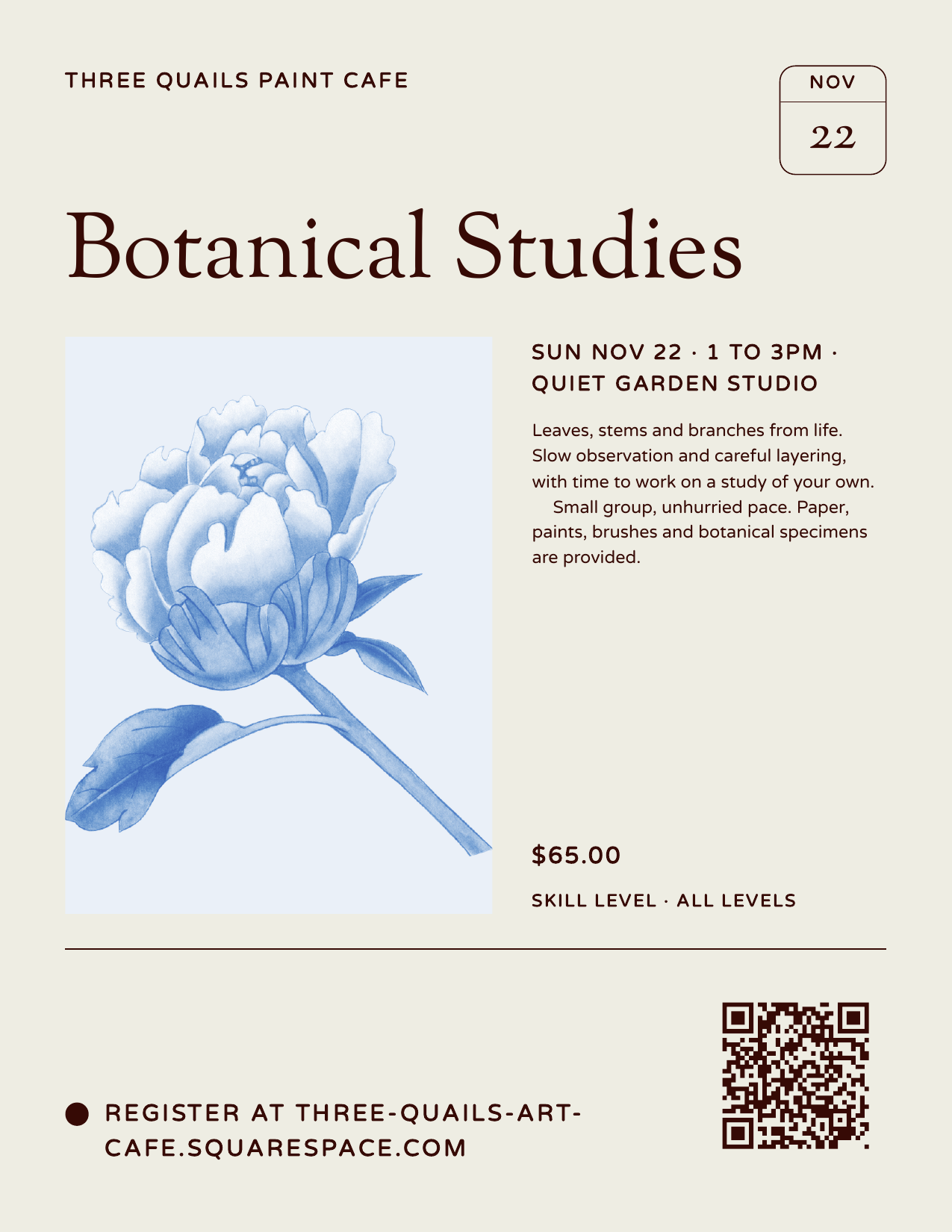
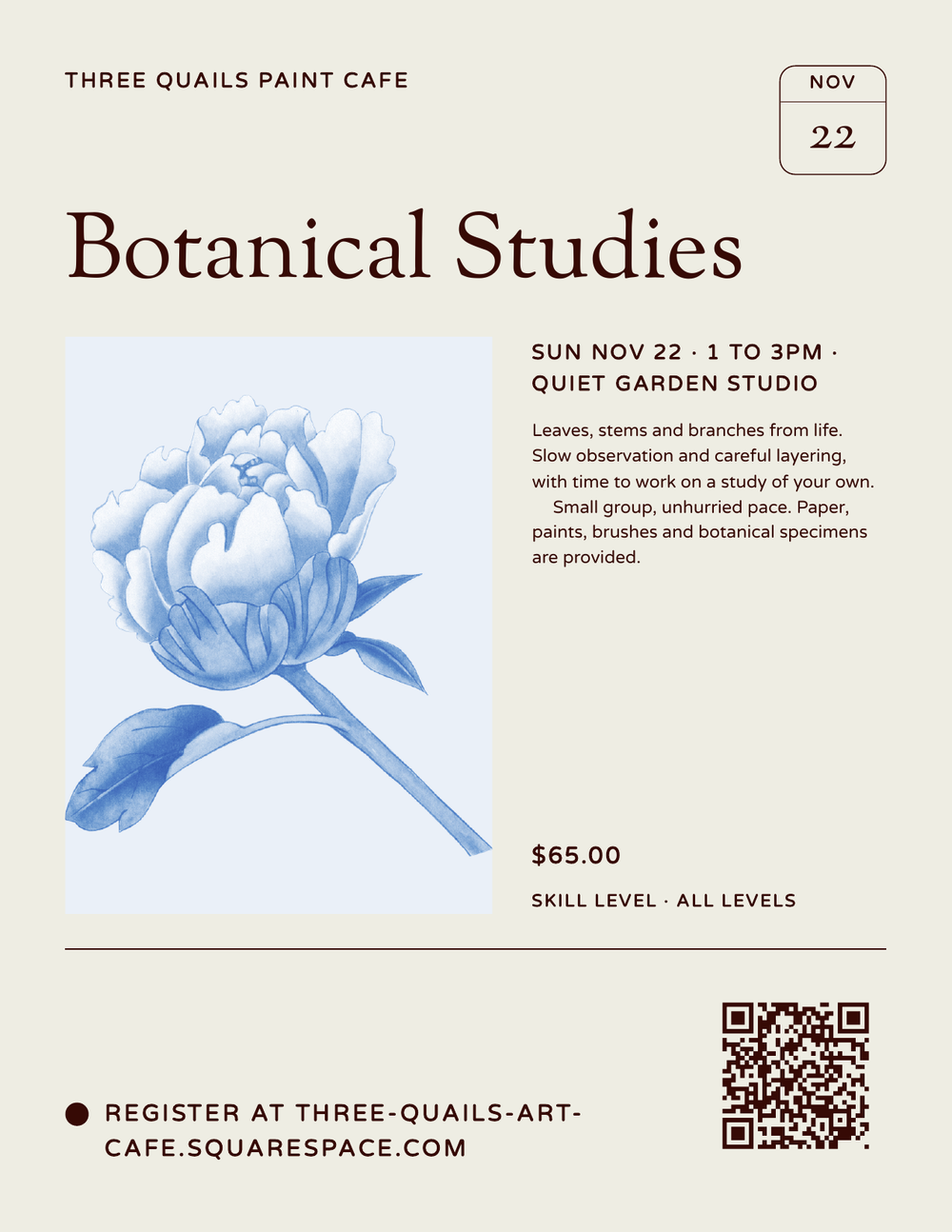
The Printable flier is a full letter-size page with your business name, the event photo, your description, price and skill level, plus a QR code that goes straight to registration, not your homepage. Click Print to print it or save it as a PDF, then put it wherever your people wait: the counter, the studio door, the community board.
Step 5
Shuffle for a fresh set
Click Shuffle looks for new combinations. If you run a weekly class, this keeps your feed from posting the same image eight weeks in a row.
Step 6
Copy your event link
Your event link sits at the bottom of the window. Click Copy link and drop it in your bio, your newsletter, a text to your regulars or a Facebook group.
How to share your whole calendar as one graphic
This is the monthly calendar post so many hosts already make by hand, built for you.
Step 1
Click Promote on your Events page
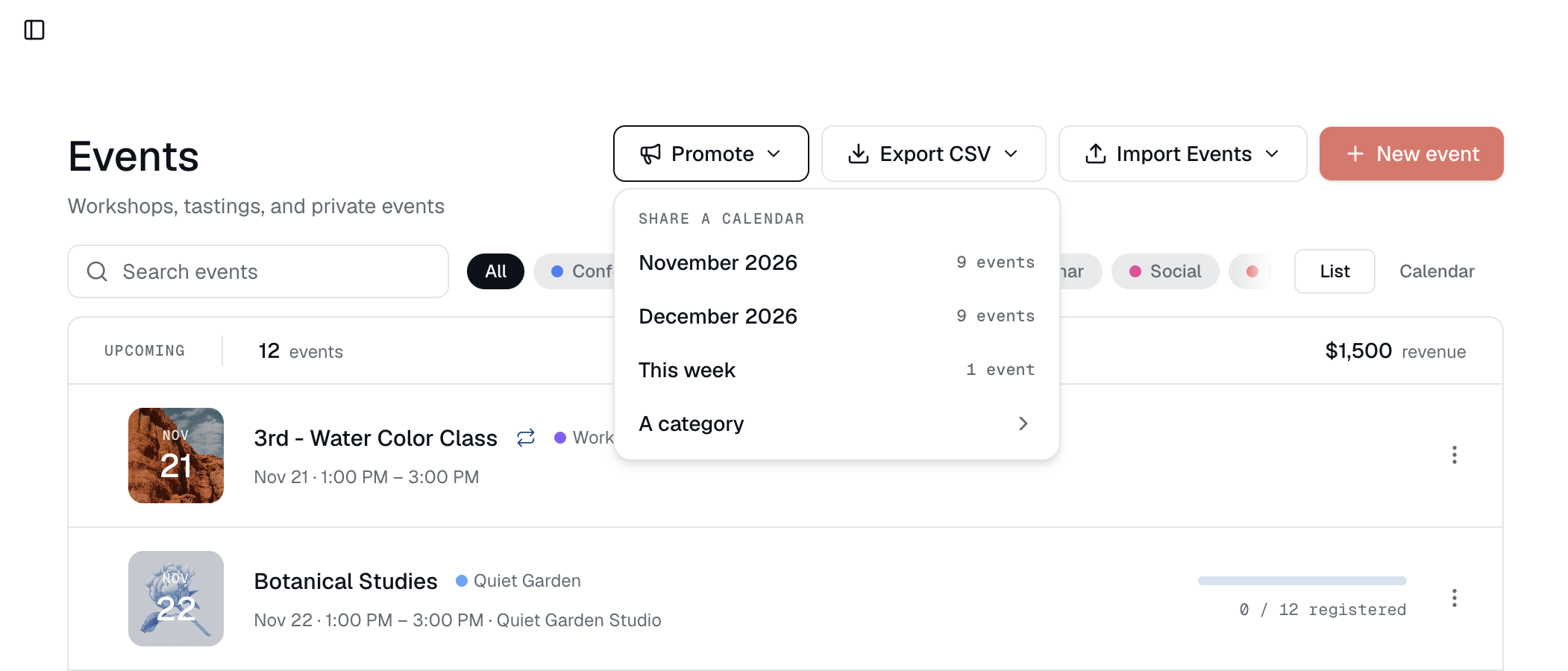
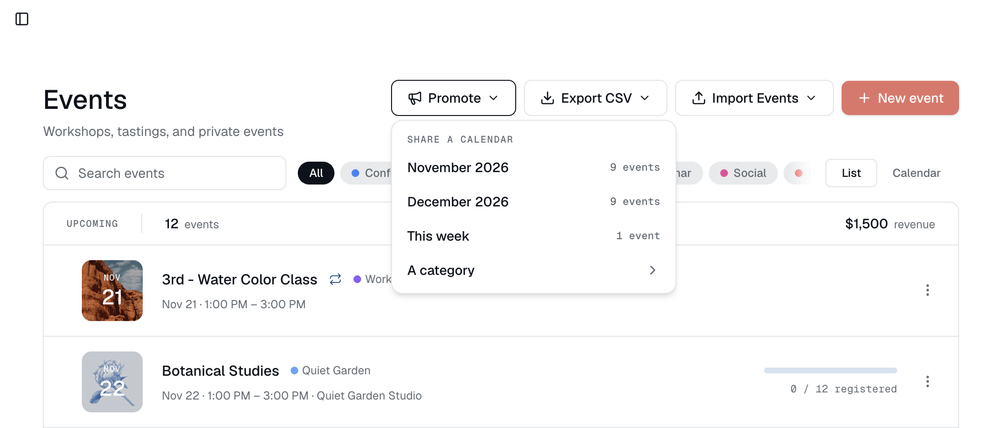
At the top of your Events page, click Promote. Under Share a calendar, you'll see your upcoming months with an event count next to each.
Step 2
Choose what to share
- A month, for your end-of-month "here's what's coming" post.
- This week, for a Monday story.
- A category, to share only workshops, only tastings or only private events.
Step 3
Download your Coming up graphic
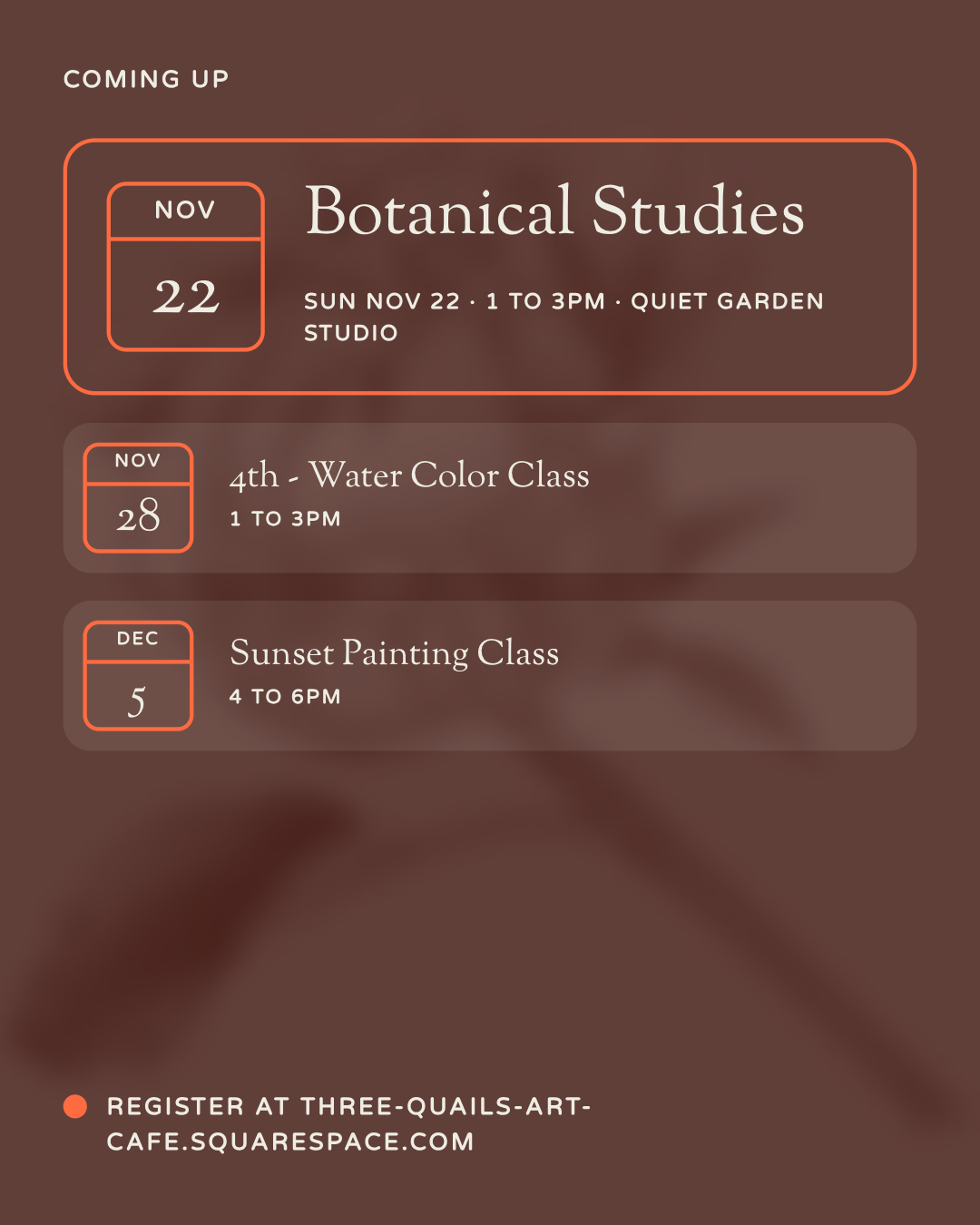
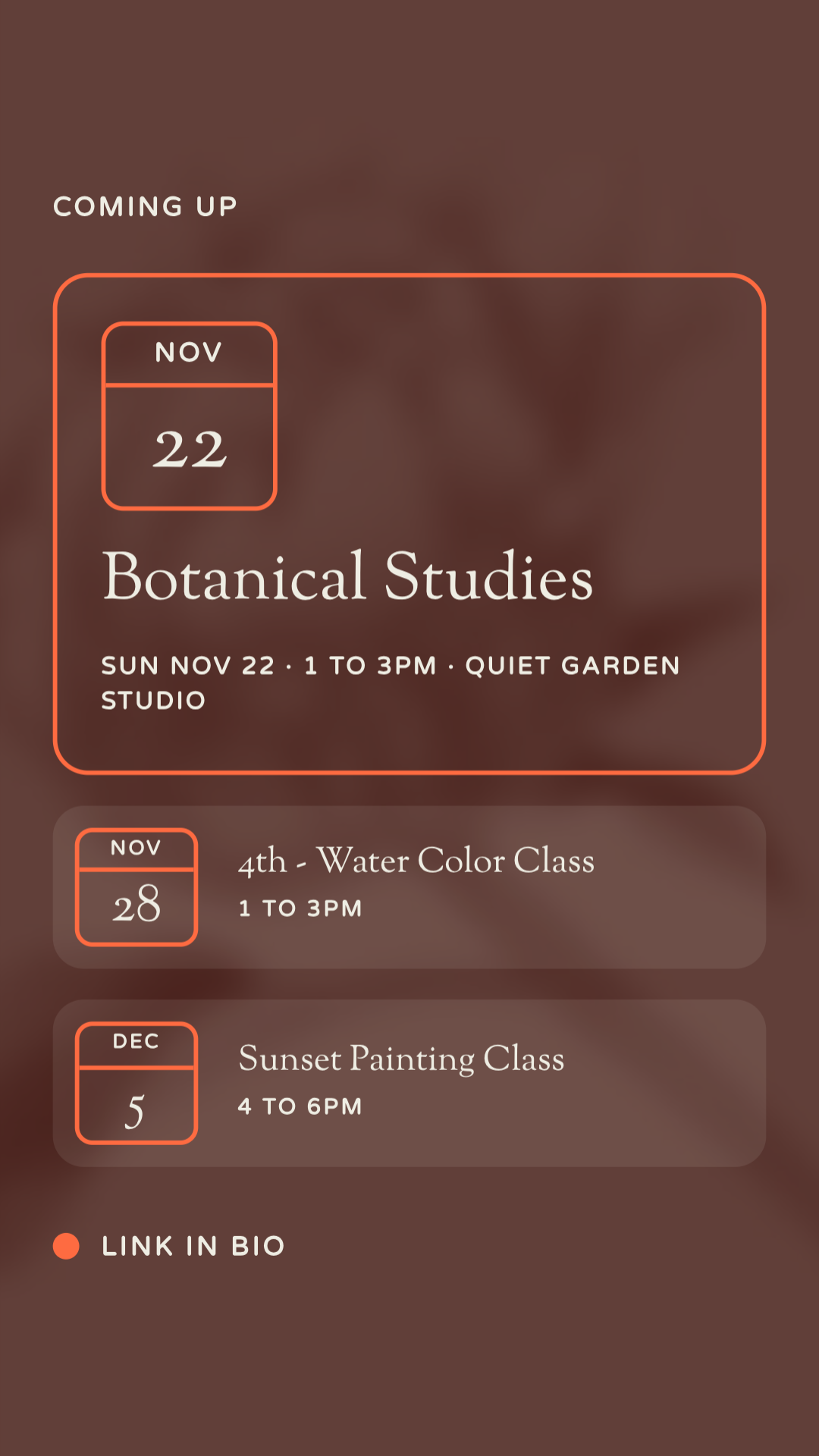
You'll get a Coming up graphic with your next event featured and the rest listed below it, each with its date and time. It comes as a feed post and a story, ready to download.
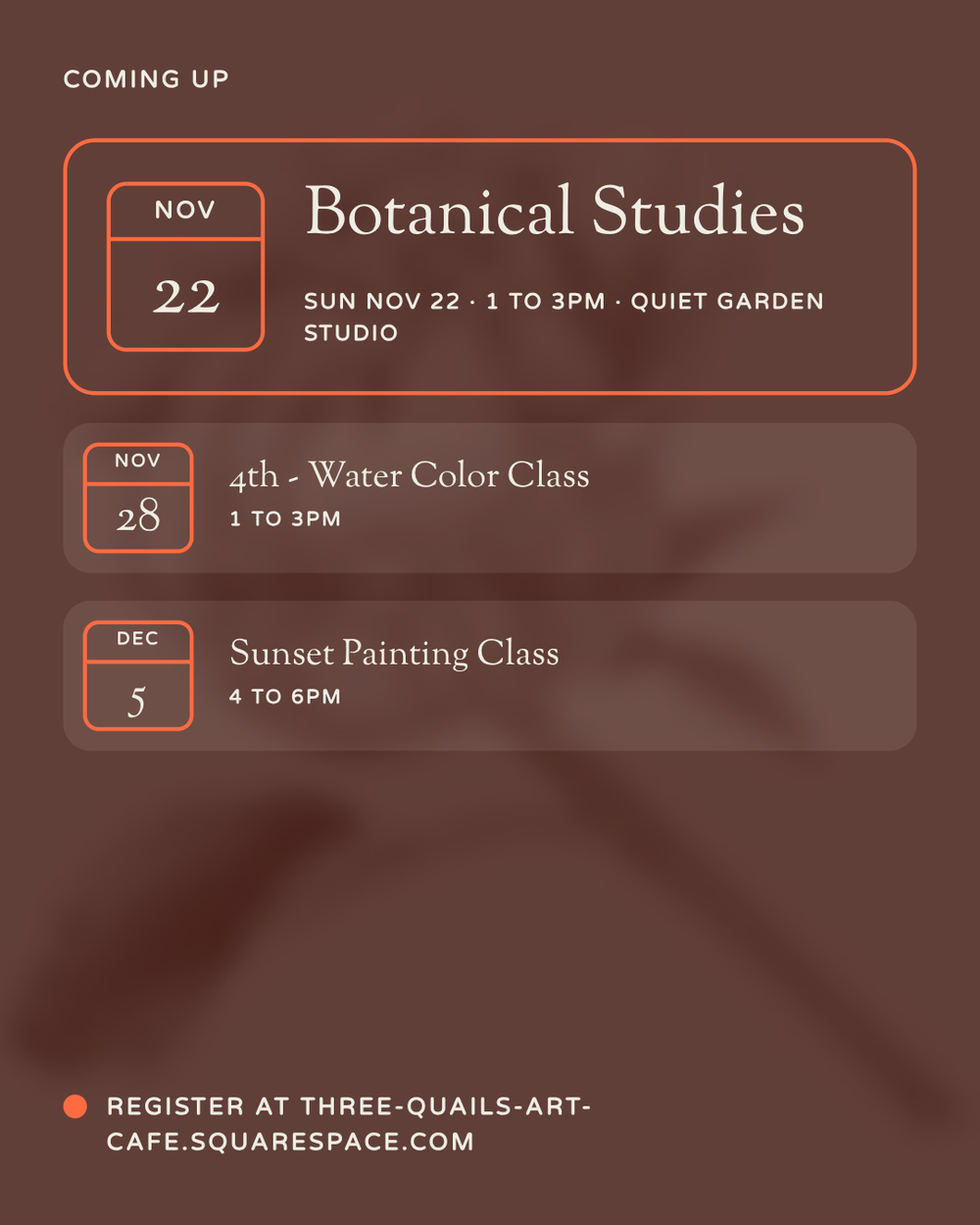
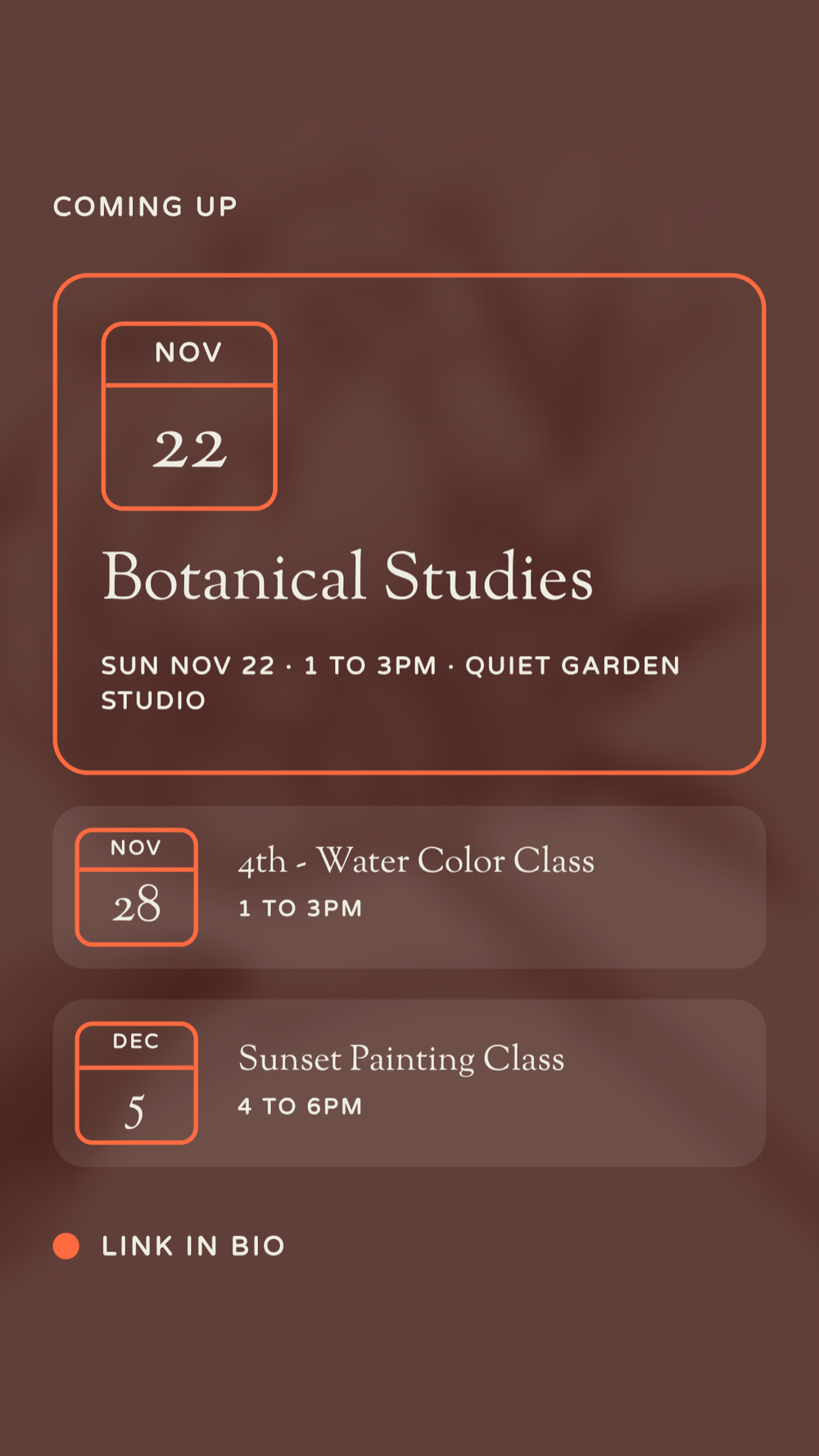
Your calendar, as a post and a story.
What to put on any event flyer or social post
Promote handles this for you, but it's a useful checklist for anything you make by hand:
- Event name, big enough to read on a phone.
- Date and time, written the way people say it: "Sun Nov 22, 1 to 3pm."
- Location, a studio name, an address or "online."
- Where to register, as a short link, "link in bio" or a QR code on print.
- Price, especially on fliers. People decide at the bulletin board.
- One image that sets the mood.
A simple promotion rhythm for a full calendar
Last week of the month: Promote, then next month. Post the Coming up graphic to your feed and story.
Each Monday: Promote, then This week. One story.
Three days before an event with open seats: Share its social post with a short caption about who it's for.
Day of: One story. "Today, 1pm, a few seats left." Link sticker on.
For Squarespace designers
Show Promote at client handoff. It's the difference between your client emailing you for a story graphic every week and doing it in a minute on their own.
Keep reading:
→ How to Create Recurring Events on Squarespace
→ Squarespace Event Calendar Widget: Your Options Compared
Make your next flier in one click.
Build an event in Eventually and get its post, story and printable flier in the same sitting. No per-ticket fees on any plan.
Build your first eventSquarespace is a registered trademark of Squarespace, Inc. Eventually is an independent extension available in the Squarespace Extensions Marketplace.