
Event defaults
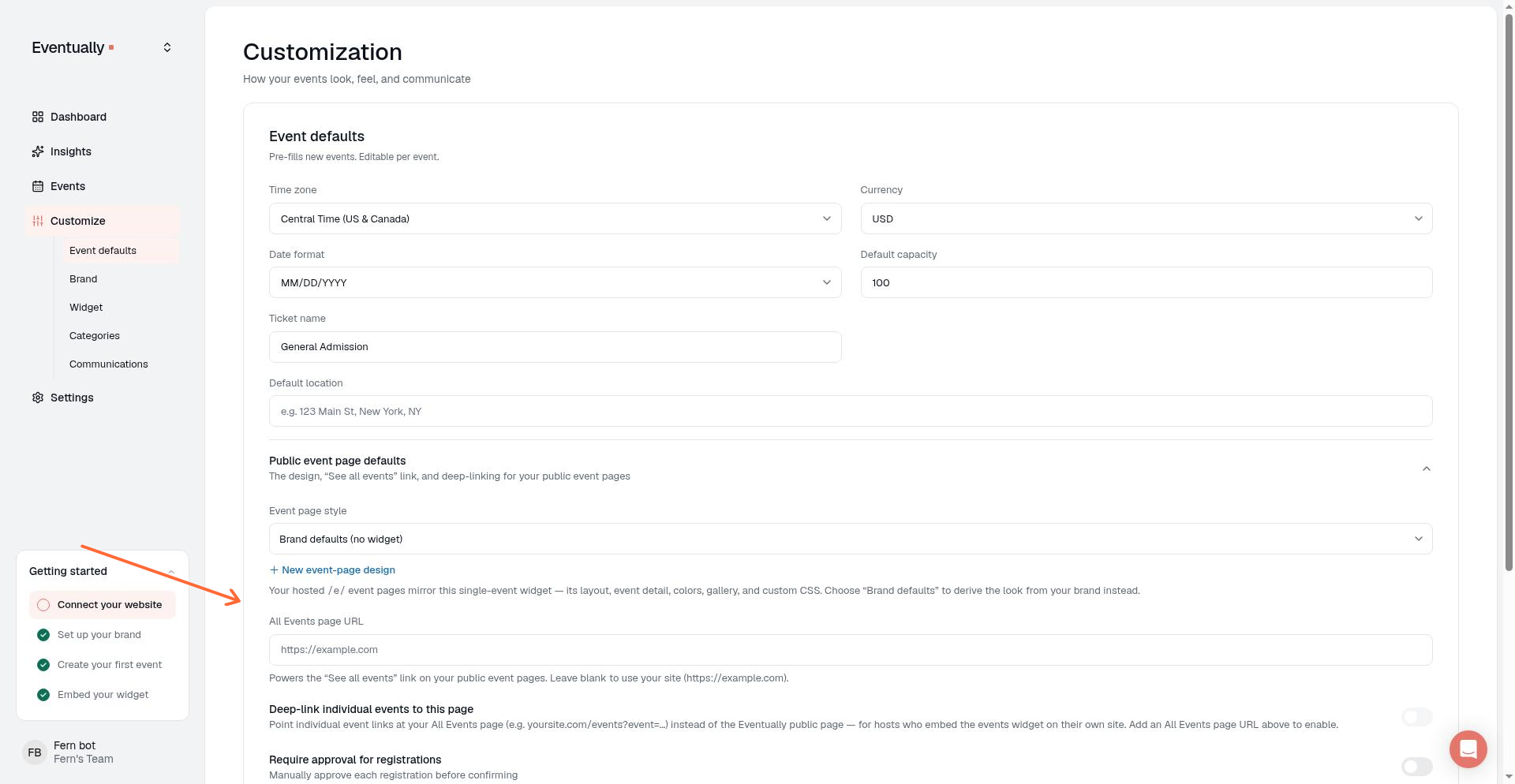
Event defaults set the starting values for every new event you create and control how your hosted public event pages look. Open Event Defaults in your dashboard to manage pre-fill settings and the look of your hosted event pages.
Public event page defaults
The Public event page defaults section controls the design, See all events link, and deep-linking behavior for your hosted event pages.
Event page style
The Event page style picker designates which single-event widget your hosted /e/ pages mirror. Choose an existing design or create a new one.
Brand defaults (no widget): derives the look from your brand settings instead of a specific widget.
Existing widget: uses the layout, colors, gallery mode, and custom CSS from the chosen widget. Event details are always rendered inline on hosted pages rather than mirroring the widget's event detail style. If you select a widget, an Edit selected design → link appears so you can jump straight to the widget builder.
When no event-page widgets exist, the picker shows + Create an event-page design. When widgets already exist, you can also click + New event-page design to add another. The new design is created as a single-event widget named Event page design and you are redirected to the widget builder to customize it.
Custom CSS on the widget you choose here styles your hosted event pages as well as that widget's own embed. Custom CSS on any other widget stays inside that widget's embed.
All Events page URL
The All Events page URL field sets the destination for the See all events → link on every hosted event page. Leave it blank to fall back to your site URL. Invalid or unsafe URLs are suppressed and the link is hidden.
Deep-link individual events
The Deep-link individual events to this page toggle points individual event links at your All Events page instead of the Eventually public page. This is intended for hosts who embed the events widget on their own site and want event links to land there.
This preference is stored and visible in the UI, but its end-user behavior is follow-on work and not yet active.
Calendar start month
Use Start calendar on first event on the Event Defaults page to control which month your team’s calendar widgets open on.
The toggle is off by default. When it is off, calendar widgets open on the current month. If the current month has no events, the calendar opens on the month of the first upcoming event instead of an empty month. If there are no upcoming events, the calendar stays on the current month.
When you turn on Start calendar on first event, calendar widgets open on the month of your next upcoming event even if the current month still has past events. Each widget uses its own filtered events to choose that month, so a category- or tag-filtered widget can open on a different month than an unfiltered widget. Visitors can still browse other months after the calendar opens.
This is a team-level default applied when widgets render, and you do not need to re-save or re-embed widgets after you change it. Save on the Event Defaults page to apply the preference. An individual calendar can override it: the calendar's Starts on control offers This month and First event, and it follows this default until that calendar makes its own choice.
For how the opening month works with filters, Limit By, and the builder preview, see Set up your calendar widget.
Price label
The Price label setting on the Event Defaults page controls whether your public event surfaces show a label such as From or Starting at before the lowest applicable ticket price on events with more than one price. Choose No label, From, Starting at, or Your own words; Your own words opens a Your price label field limited to 24 characters. The setting is available to owners and admins on every plan.
When an event has multiple distinct, currently purchasable prices, the calendar widget, hosted event page, and series page show the selected label before the lowest applicable paid price. Sold-out, off-sale, access-restricted, and add-on tiers never determine the labelled price. An event with both free and paid tiers leads with the cheapest paid price instead of reading "From Free", and a free-only event continues to display "Free".
With No label, events keep showing their selected ticket price, except that a free tier listed first with no default tier gives way to the cheapest applicable paid tier when paid tickets are also available.
The widget's price filter, Sale pill, and struck-through original price follow the ticket price buyers see. Custom wording is buyer-facing and shared across every public surface of your team's events. For how ticket tiers and pricing work, see Creating ticket tiers and pricing.
Hide tickets remaining
The Hide tickets remaining toggle on the Event Defaults page hides remaining-ticket counts across your public event surfaces. Owners and admins can turn it on, and it is off by default.
When it is on, Eventually calendars, hosted event pages, and series pages show Sold out when applicable but never display how many tickets are left. Sold out and waitlist statuses still show, and purchasing, quantity limits, capacity enforcement, and waitlists keep working normally.
The setting is site-wide: it overrides each calendar's Tickets left control, and that control is disabled in the calendar editor while the setting is on, with a note pointing you to the Event Defaults page.
Skill level scale
The Skill level scale card on the Event Defaults page defines the skill levels guests see on your events. Any team member can view the page, but updating defaults requires the appropriate admin or owner permission.
Skill levels are opt-in: guests see them on your widgets, event pages, and filters only after you save the scale.
Scale name: up to 30 characters. This name labels the scale on guest widgets and filters.
Levels: add, edit, and reorder points. Each label is up to 40 characters, and a saved scale needs 2–10 points.
Not a rank: mark a level as not a rank (for example, All levels) to keep it out of the meter and dot display while still offering it as a filter option. At least one level must be a rank to save the scale.
Use a 1–N scale: switch to a numeric scale so guests see a value such as 3 / 5 instead of level labels.
Renaming a level keeps the events already assigned to it. Reordering or removing levels changes how the meter represents current events.
Save the scale with Save scale & turn on to enable skill-level display for guests. Remove scale turns that display off while preserving the levels already assigned to events.
Pre-fill defaults for new events
Event defaults control the starting values that appear in the new-event wizard so you don’t have to re-enter common fields each time. Change these values on the Event Defaults page, then edit them per event after creation.
Default ticket name
The Ticket name field sets the name for the first draft ticket in a new event. Leave it blank to start with General Admission.
Default location
The Default location section sets the starting location for every new event. Choose a format (In person, Virtual, or Hybrid) and fill in the venue name, address, and optional join link.
Attendee info collection
The Attendee info collection section controls when custom attendee details are gathered. Choose Before, After, or Off. The setting applies to paid events; free tickets always collect attendee details during registration, regardless of this setting.
Waitlist default
The Turn on the waitlist for new events toggle sets whether new events start with a waitlist enabled. It is available on the Essentials plan and above and is locked on plans below Essentials.
New events inherit this default whether they are created in the event wizard, Evie, panel event creation, or a CSV import. The default applies to newly created events only; an explicit per-event waitlist setting overrides it. On a downgraded team, you can still turn an already-enabled default off.
Date format
The Date format setting controls how organizer-facing date and time pickers display across event scheduling and ticket sale windows. Choose MM/DD/YYYY, DD/MM/YYYY, or YYYY-MM-DD. MM/DD/YYYY uses a 12-hour time display; DD/MM/YYYY and YYYY-MM-DD use a 24-hour time display. This preference controls organizer-facing inputs only. It does not affect CSV parsing or how attendees see dates.
Related guides
Sharing a direct event link: how hosted event pages look and what attendees see
Set up your calendar widget: configure single-event embed layouts, colors, and custom CSS