
Manage recurring event ticketing limits and access
Each session in a recurring series manages its own capacity, sold-out state, and ticket access. Setting limits per session prevents one sold-out Tuesday from blocking Thursday's sales, and combining capacity controls with pre-sales or access codes lets you gate recurring events exactly as you would one-time events.
How capacity works across recurring sessions
When you create a recurring event, we generate individual sessions for each date. Each session has its own attendance controls:
Total event capacity: caps combined attendance across the standard, in-person ticket tiers for that single date only. Virtual ticket tiers use their own capacity pool, and add-ons do not consume room capacity.
Per-ticket limits: cap sales for a specific ticket type on that date only.
Sold-out status: determined independently per session. A sold-out Tuesday does not affect Wednesday availability.
Leave either field blank to set unlimited capacity for that session.
Set capacity for a single session
Open the recurring event in the Eventually dashboard and select This event in the edit scope dialog.
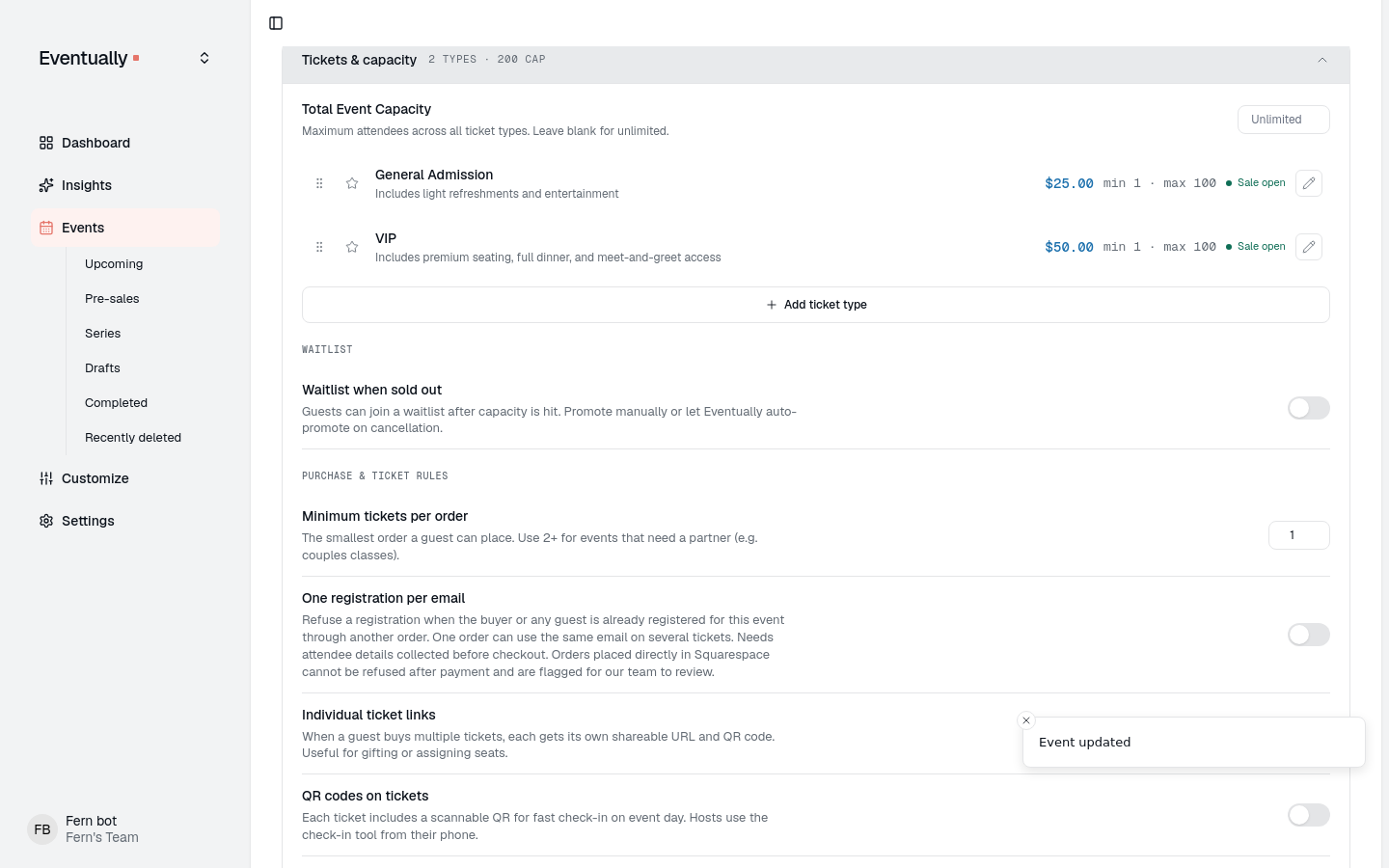
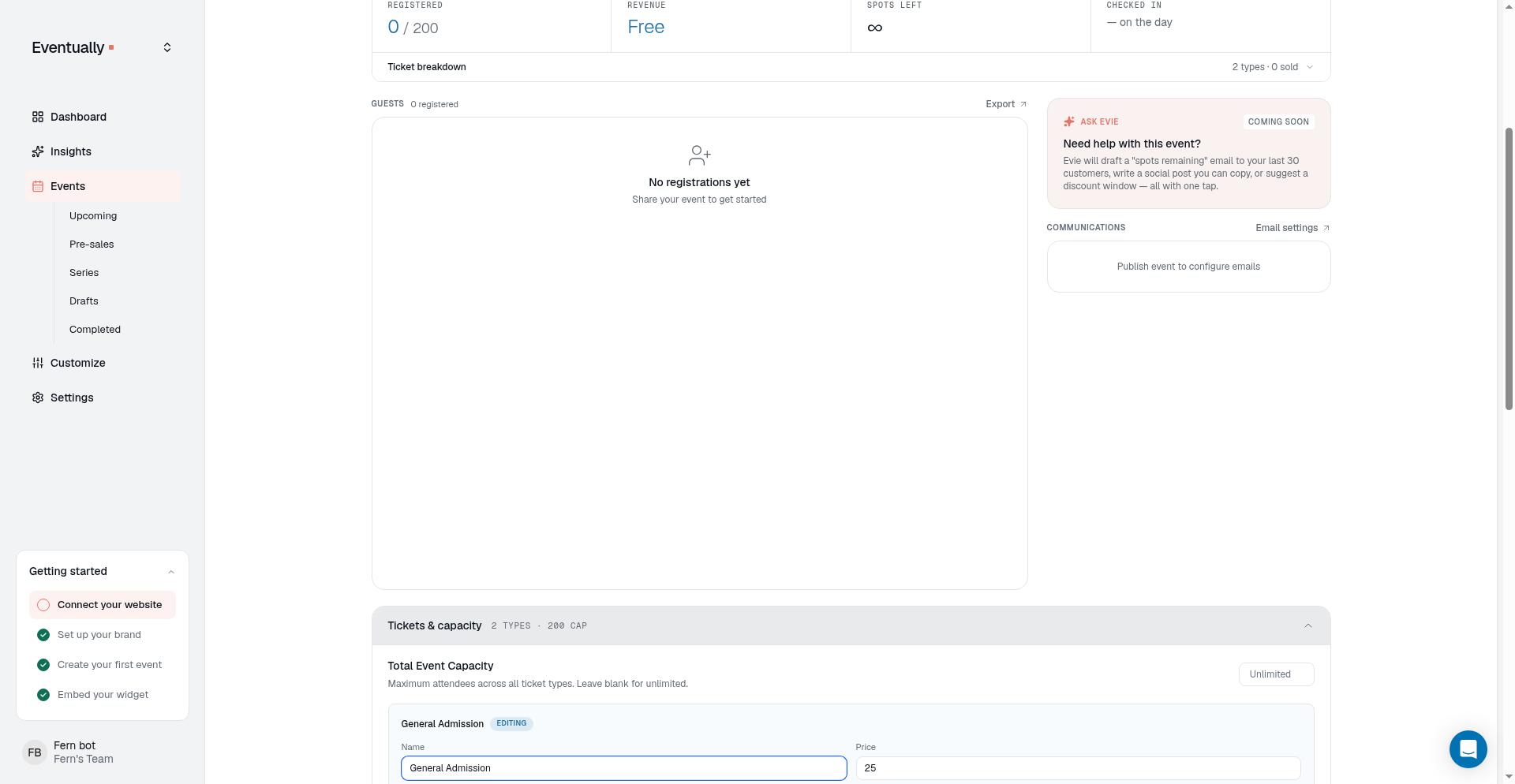
Expand the Tickets & capacity section.
Enter a Total Event Capacity and/or a Ticket Limit for the ticket types you want to cap.
Save your changes. Total Event Capacity saves as soon as you leave the field; ticket-tier changes, such as a Ticket Limit, save when you select Save ticket.
Changes apply only to that occurrence. Other dates in the series keep their original limits.
Set capacity for all future sessions
Open the recurring event and select This and following events in the edit scope dialog.
Update the Tickets & capacity settings.
Save your changes. Total Event Capacity saves as soon as you leave the field; ticket-tier changes, such as a Ticket Limit, save when you select Save ticket.
All future sessions receive the new limits. Past occurrences are unaffected.
How sold-out behavior works per session
When a session reaches its total event capacity, or when every ticket type on that session has sold out, that date shows as sold out. Other dates in the series remain available for purchase.
If one ticket type reaches its limit while other types are still available, that ticket type shows as sold out on that date only. Buyers can still purchase other ticket types for the same session.
Pre-sales and recurring events
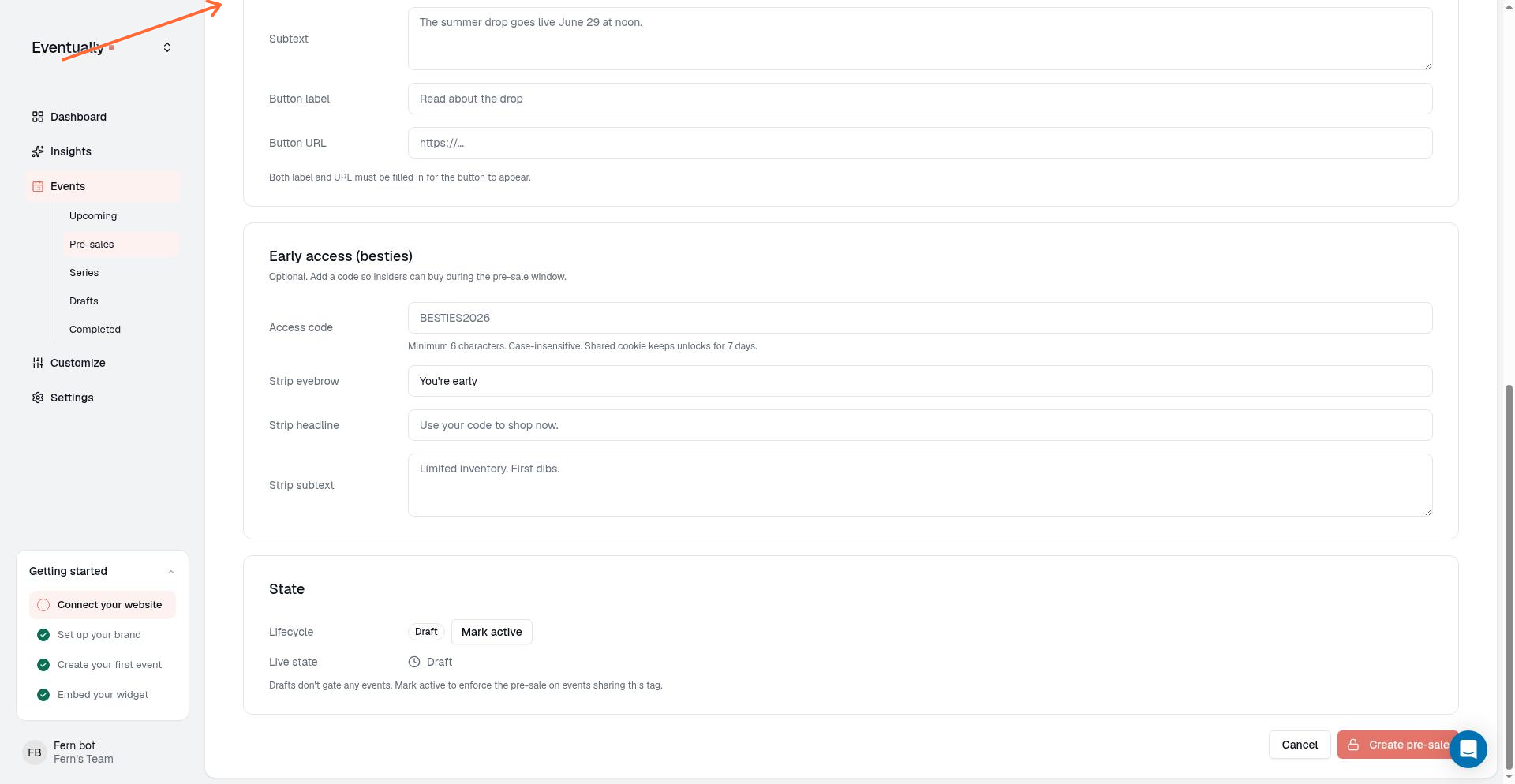
Pre-sales apply to events by tag. If your recurring event carries a tag with an active pre-sale, every session in the series follows the same timing windows:
Visible at: when sessions first appear in the calendar widget.
Early access starts: when buyers who have the pre-sale's access code can purchase tickets. Early access is active only when the pre-sale has an access code; without one, tickets remain unavailable until Public on-sale.
Public on-sale: when tickets are available to all visitors.
Because pre-sales apply by tag, adding or removing a tag from the recurring event changes which pre-sale schedules apply to it. Every active tagged pre-sale applies, and the most restrictive applicable timing controls access. With multiple tags, this can mean multiple unlock times and the latest applicable public on-sale time.
Access codes and recurring events
Access codes are set per ticket type, not per event. When you add an access code to a ticket type on a recurring event, the code applies to that ticket type across every session in the series.
To change which ticket types are gated for a single session, edit that occurrence with the This event scope and update the Access code field on the relevant ticket types.
Sale pricing on recurring tiers
Original price is one of the tier fields that propagate when you update a ticket tier across a recurring series, so a markdown set on the parent tier reaches the sessions covered by the scope you choose.
Edit the parent tier under the series scope you need (This and following events or All events), set or clear Original price (optional), and save. Clearing Original price removes the sale display on the sessions that receive the update. For how Original price creates the struck-through buyer display, see Creating ticket tiers and pricing.
Two scope rules apply when you edit tiers across a recurring series. If the series has a later schedule rule, All events is unavailable from dates after the change; choose it from the series' first date or the first date under an earlier rule. When a schedule change would remove dates that have attendees, we refuse the save and ask you to confirm first: dates you confirm become standalone events and keep their tickets.
Using pre-sales and access codes together
You can combine both features on a recurring event. For example:
A pre-sale schedule controls when sessions appear and when public sales open.
An access code on a VIP ticket type hides that tier until buyers enter the code, even during public on-sale.
This is useful for member-only pricing or private tiers within a recurring class or workshop series.
When to change capacity for a single session vs. the whole series
You want to... | Choose |
|---|---|
Lower capacity for one date because of a smaller venue room | This event |
Add a new ticket tier starting next week | This and following events |
Fix a typo in the event description across all dates | All events |
Remove a ticket type that is no longer offered | This and following events |
Increase total capacity for the entire series | All events |
Related guides
Creating recurring events: Set up the schedule and frequency for repeating sessions.
Set event capacity and ticket limits: How total event capacity and per-ticket limits work.
Set up a pre-sale for your events: Create timing windows and early access for events by tag.
Set up access codes for ticket types: Hide ticket types behind a code prompt.
Pre-sale & early-access codes: Compare pre-sales and access codes side by side.